Click here to view this article in a new browser tab.
This article will show how to override your browser settings and allow any website to play audio. If you are encountering an issue where there's no audio coming from the Vixi Suite but you're able to hear other sounds from your PC, try these steps.
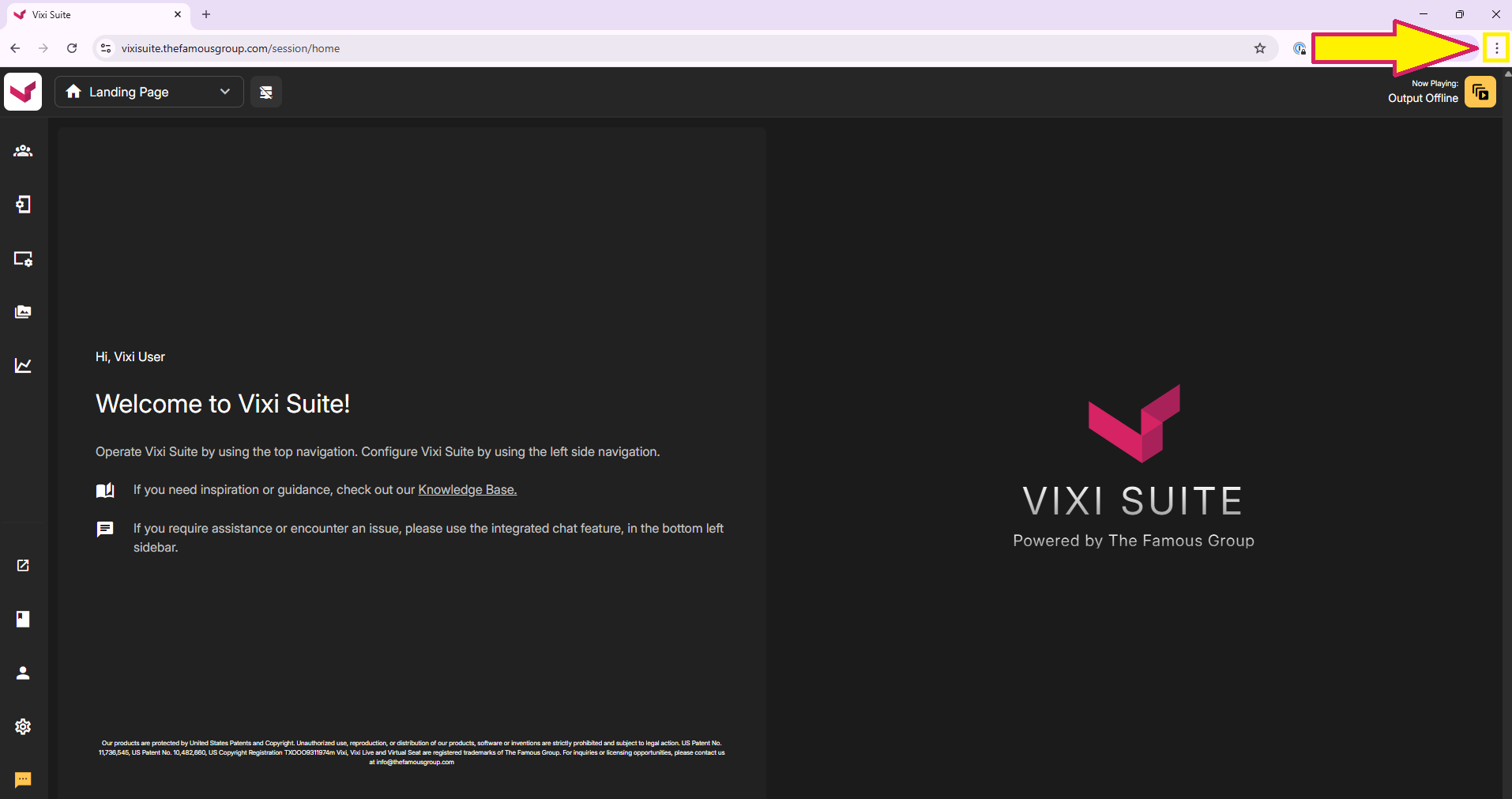
1. The first step is to click the 3 vertical dots to open Chrome's Settings menu in the upper right corner
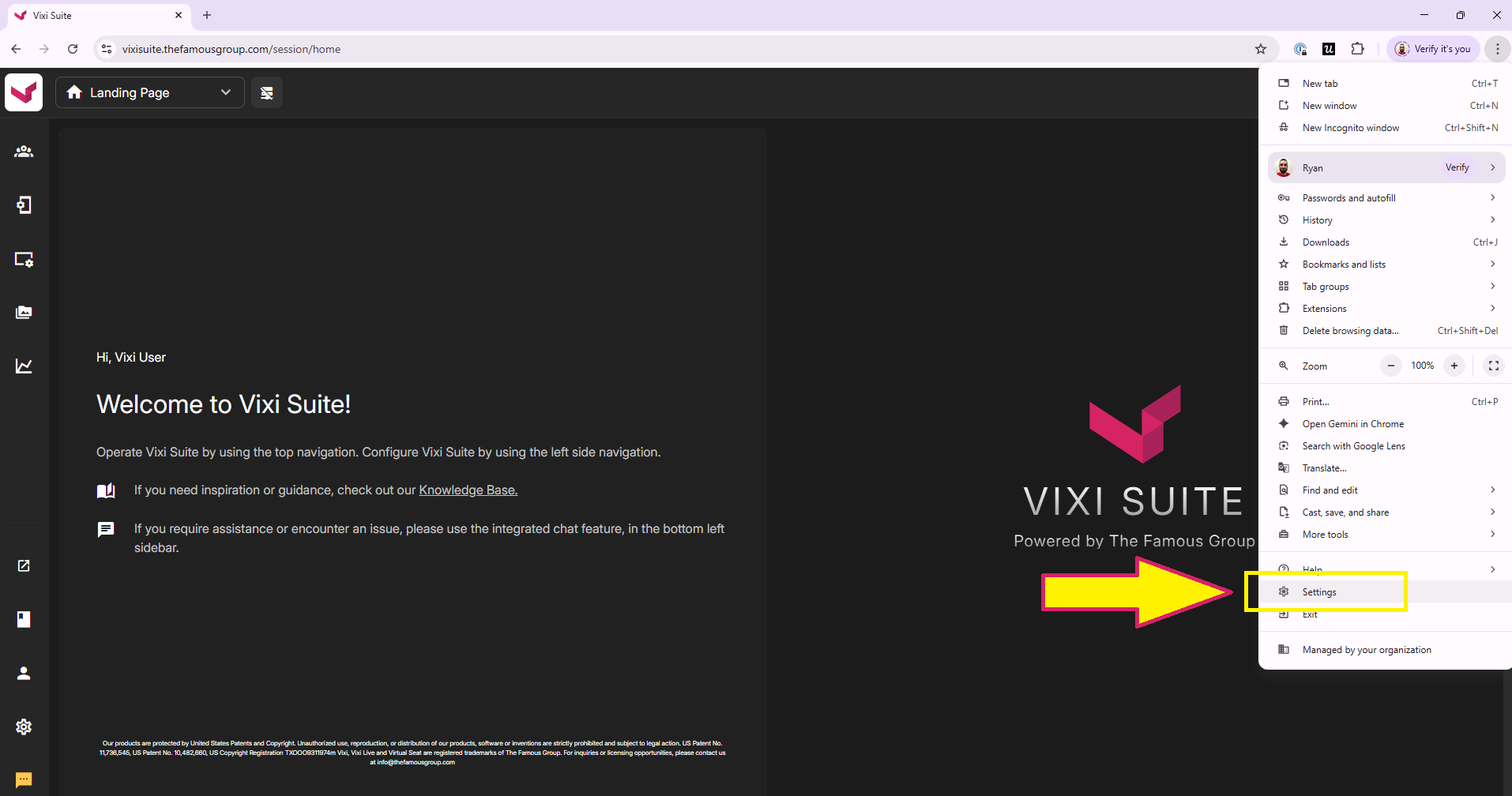
2. Once that menu opens, click Settings near the bottom of the list
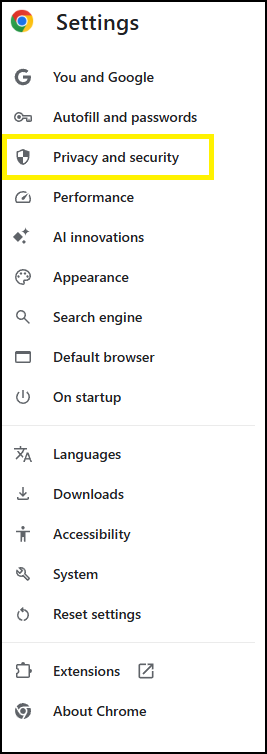
3. When the next Settings menu opens, click Privacy and Security
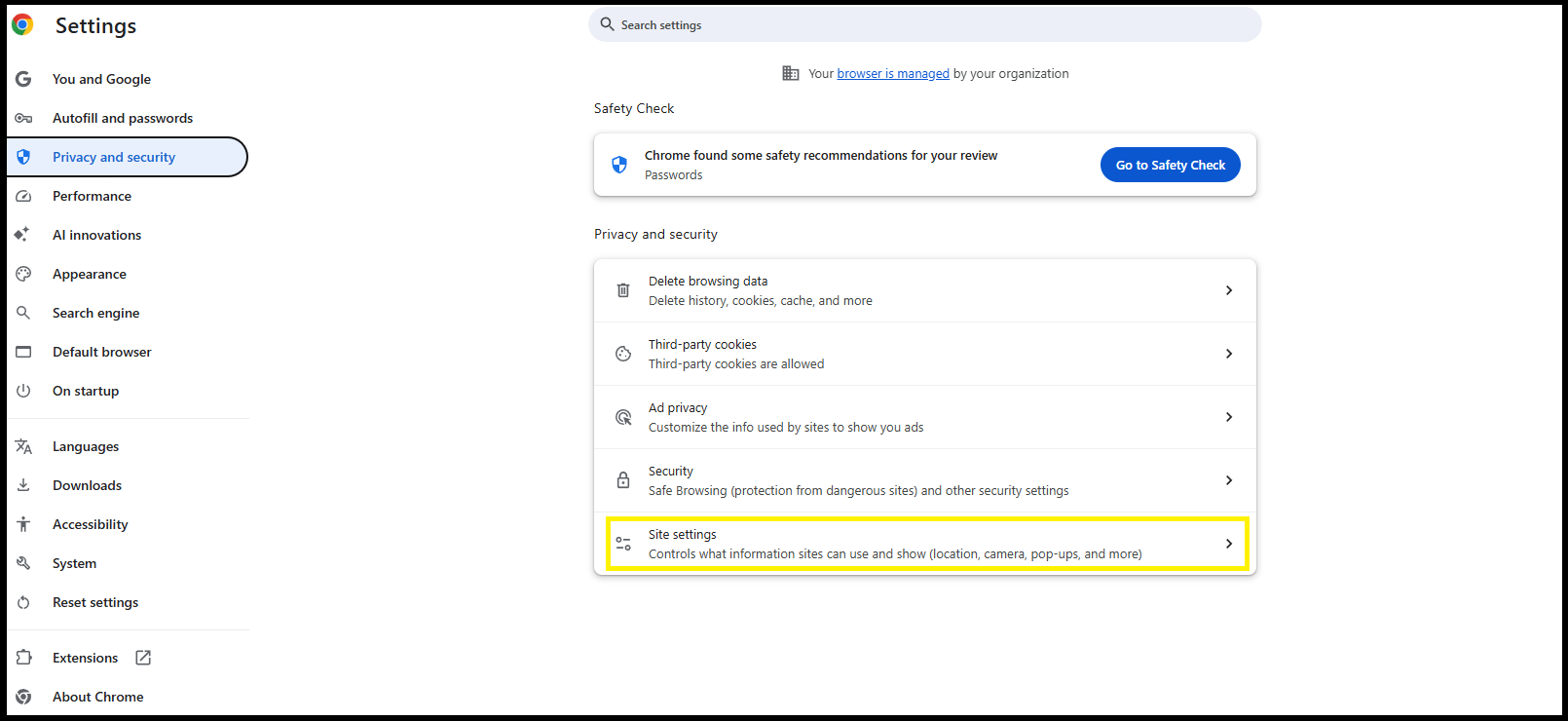
4. On the Privacy and Security tab, click Site Settings
5. Next, scroll all the way to the bottom and click Additional Content Settings to expand the menu
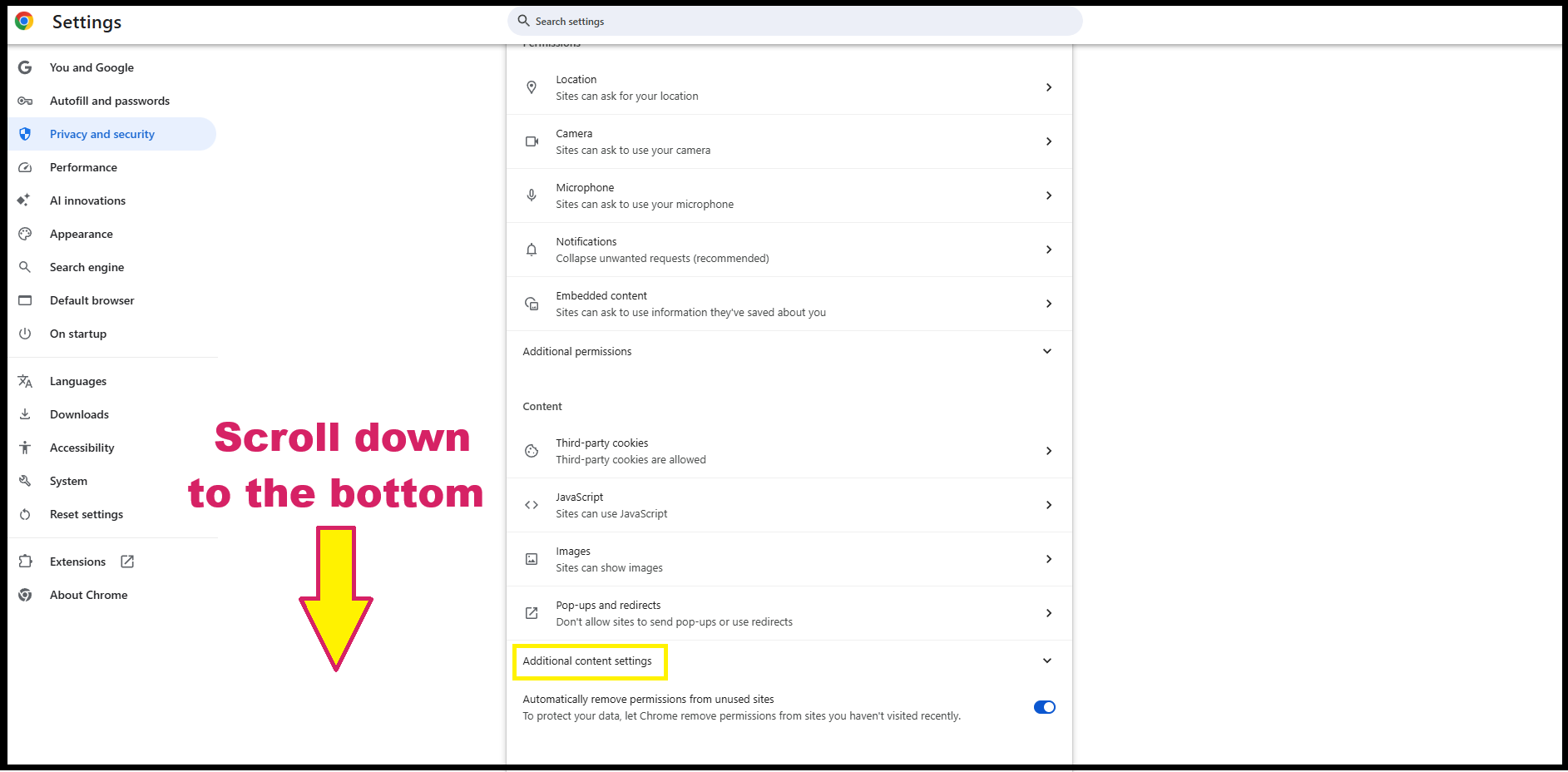
6. When the menu expands, click Sound
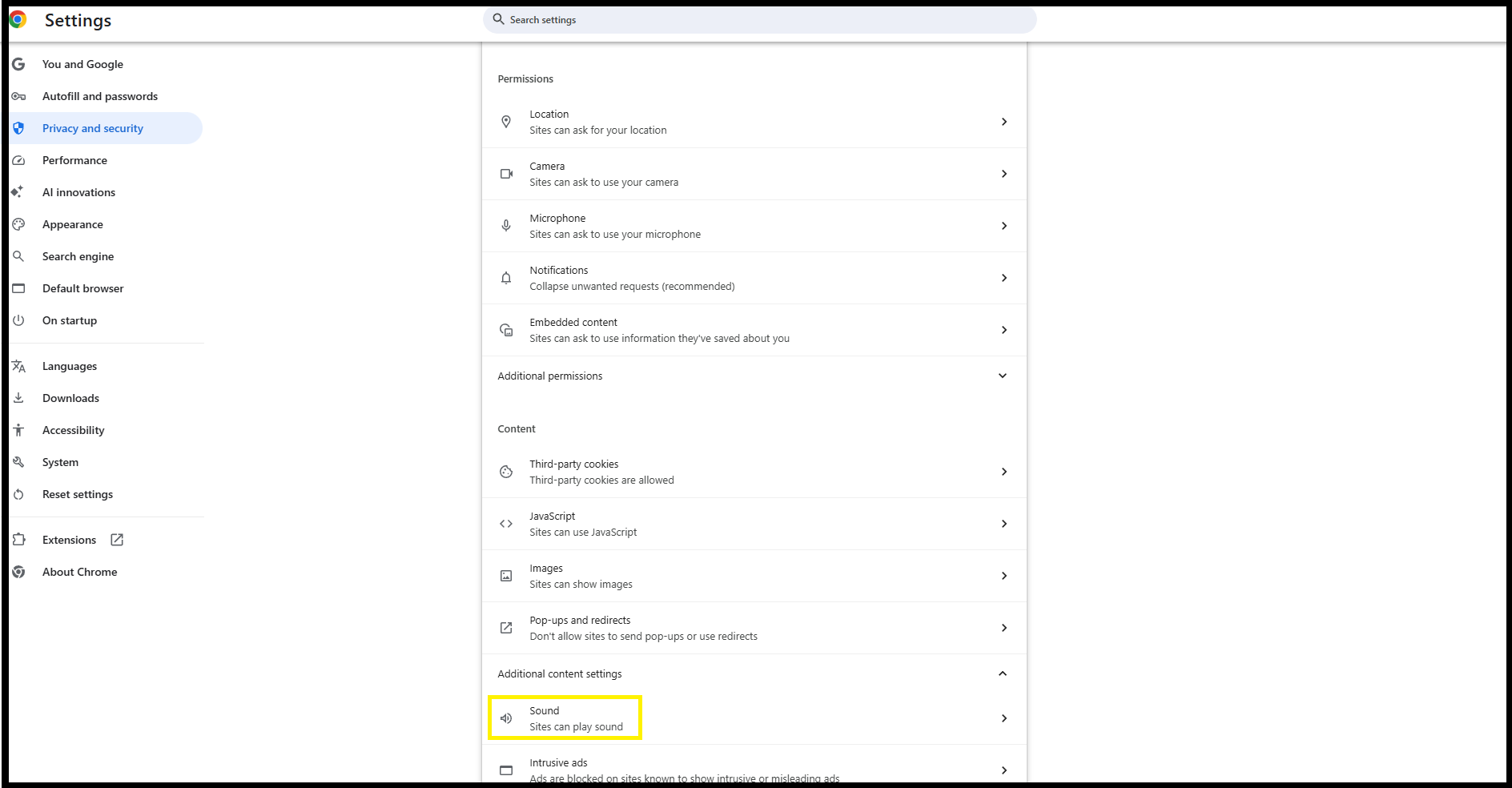
7. One the Sound menu, at the bottom there is an option for Allowed to Play Sound. Click the Add Button
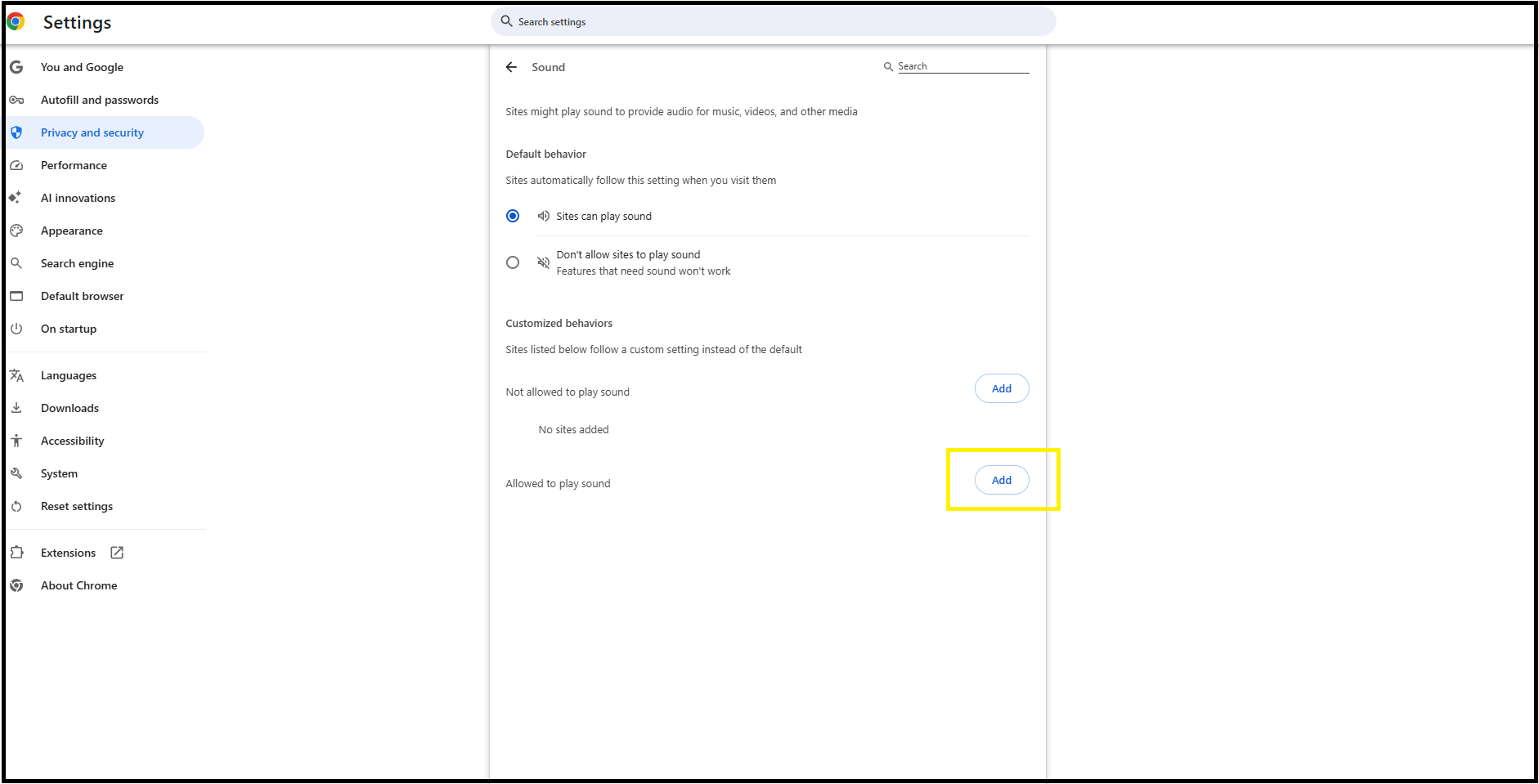
8. In the text box, enter the following URLs one at a time. Enter the first one and Save. Then click Add again, and enter the second one and Save
- https://vixisuite.thefamousgroup.com/
- https://cdn.vixisuite.thefamousgroup.com/
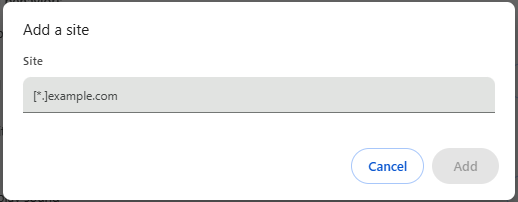
9. Refresh your browser and attempt to play sound again. If the issue was related to your PC's Media Engagement Index (MEI), it should be resolved. If the problem still occurs, please contact Support Chat so we can find the solution.
Was this article helpful?
That’s Great!
Thank you for your feedback
Sorry! We couldn't be helpful
Thank you for your feedback
Feedback sent
We appreciate your effort and will try to fix the article