Click here to open this guide in a new browser tab.
This guide will show you the best practices when creating a Custom Groov.
Creating a Custom Groov
To create your own Custom Groov file, you'll create an MP4 that you'll upload into the Vixi Suite. Once you've uploaded your MP4, it will display as an option when using the Groov dropdown as seen below.
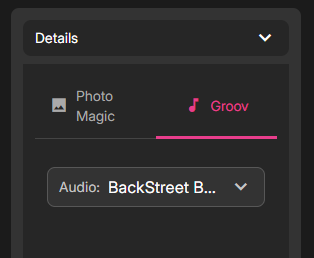
1. Recording
You'll be recording and then uploading an MP4 video of your own head/facial movements. This MP4 clip will also contain the Audio for the Groov.
- Set up your recording software so that it picks up PC Audio, but does NOT pic up Microphone audio
- When you begin recording, you'll need to manually play the Audio from your PC and then lip-sync to the song. Follow the best practices below when recording your MP4
- After you've recorded your MP4, you can trim the beginning/end and then upload it to Groov
Best Practices for Recording
These are the most important settings to use when creating your Custom Groov. Each one of these settings helps the final Groov look better:
- Record or trim the final video into a 1:1 square shaped video
- Record using 30 FPS in your recording software
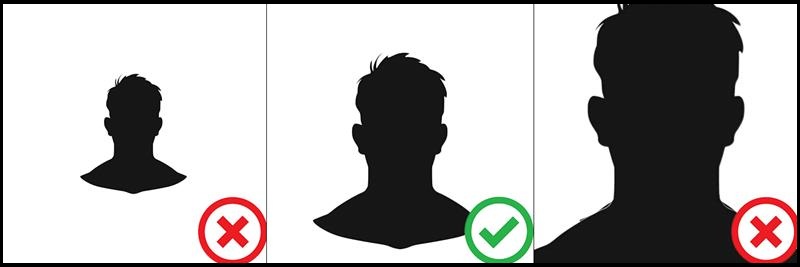
- Sit close enough to the camera so that you take up roughly 75% of the vertical space
- Over enunciate all words. Use wide and exaggerated mouth movements
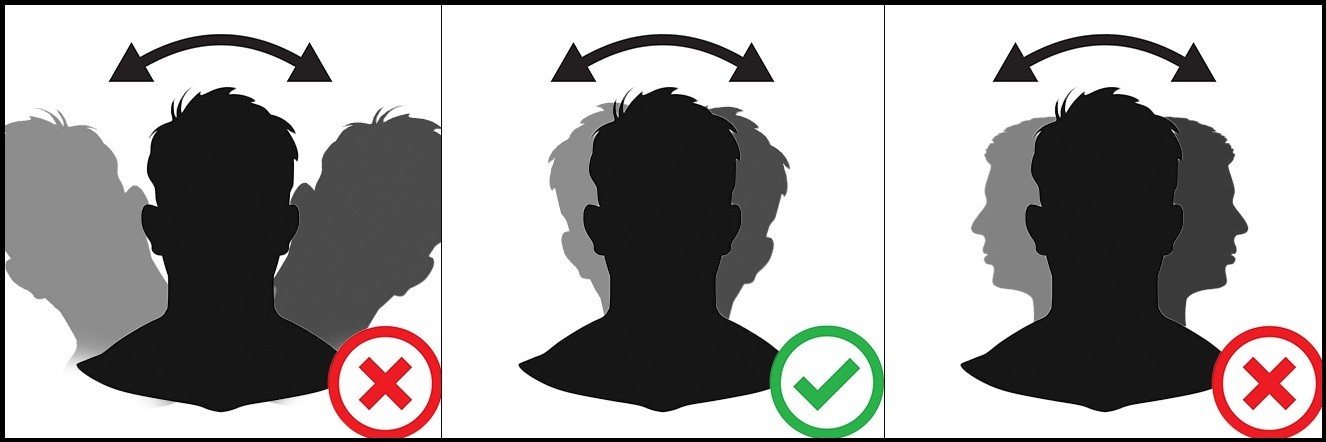
- DO NOT move your head too far forward, back, or to the sides
- Aim to create an MP4 that is around 20-40 seconds long

2. Uploading
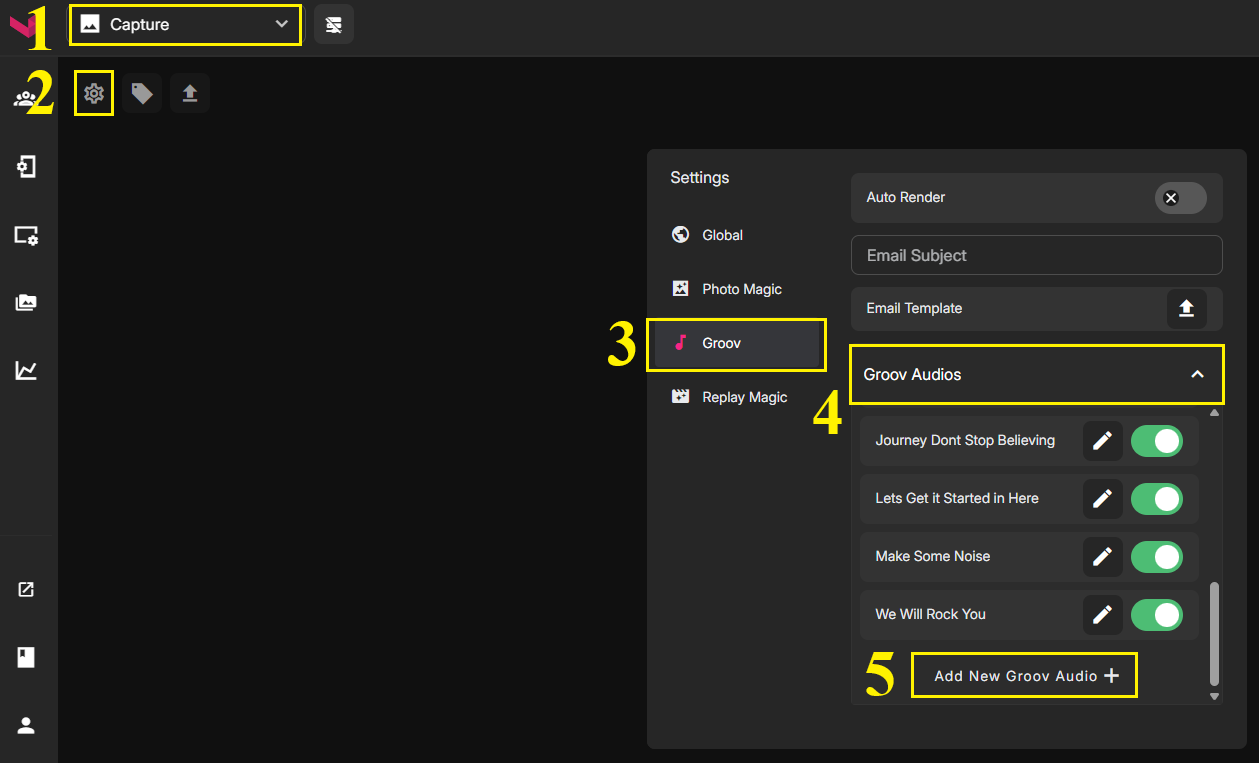
To upload your finalized MP4, use the dropdown in the header to go to the Capture Page. On the Capture Page, click the Gear icon in the top left. When the menu opens, select Groov > Groov Audio > Add New Groov Audio.
Was this article helpful?
That’s Great!
Thank you for your feedback
Sorry! We couldn't be helpful
Thank you for your feedback
Feedback sent
We appreciate your effort and will try to fix the article