Click here to open this guide in a new browser tab. You can also watch either of the Video Guides on Polling:
- The first video focuses on Setup and Event Day Moderation (Topics 1-5 below)
- The second video focuses on Leaderboards and Custom Avatars (Topics 6-7 below)
Topics Covered:
- Accessing Input and Output
- Phone Design, Output Design, and Asset Manager
- Create Question Groups, Questions, and Answers
- Using the Playlist
- Generating Questions using Question Magic
- Leaderboards
- Custom Avatars and Names
- Alternate Modes: Elimination, Head to Head, Predictive (Coming Soon!)
i. Accessing Input and Output
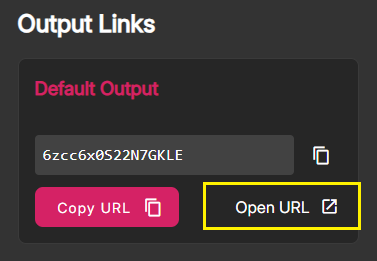
At any time, you can view the Video Board Output by opening the Left Nav and clicking on Input/Output Links. Then, click "Open URL" in the lower right corner of the Default Output as seen in the image below.
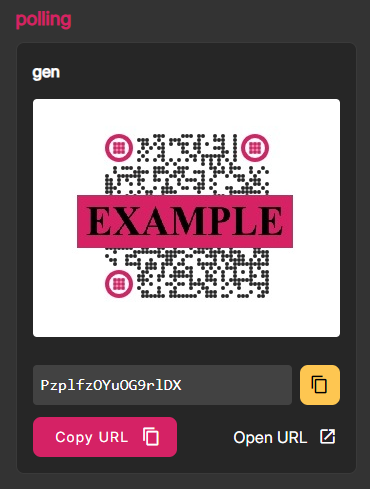
To view the Phone Design from the fan's perspective or to simply test your Poll, first make sure that the Polling app is Playing and then scan the Polling QR code. This code is also located in the Left Nav, in the Input/Output Links section. (If you scan the Polling QR Code before the Polling app is Playing, you'll be placed on the "Waiting to Start" screen until Polling begins.)
ii. Phone Design, Output Design, and Asset Manager
One of the first steps when setting up Polling is to configure your graphics for Phone User Input and Video Board Output. You can access the Phone Design and Output Design using the Left Nav.
If you've uploaded graphics to the Asset Manager, those will be used automatically as default assets for Polling.
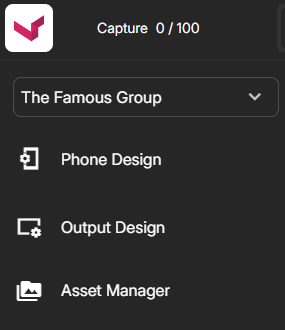
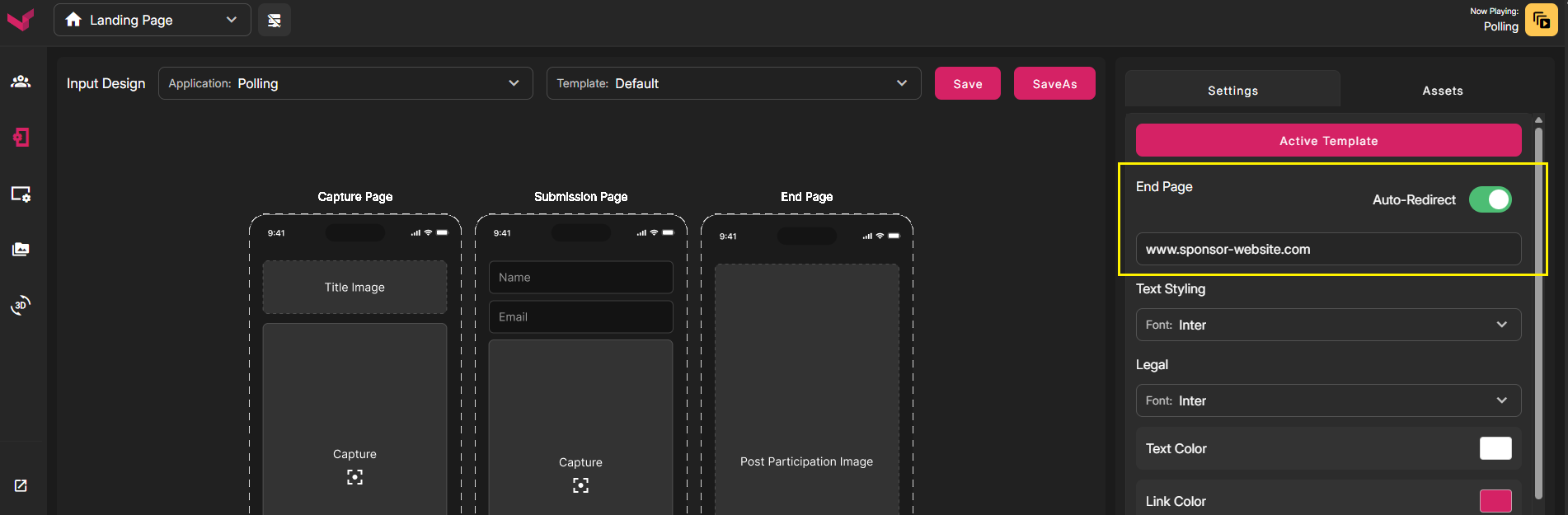
In the Phone Designer, you can set up your post-show Redirect. To set up a redirect, select Phone Design in the Left Nav and then select Polling in the first dropdown. You'll see the Redirect Field on the right side of the page.
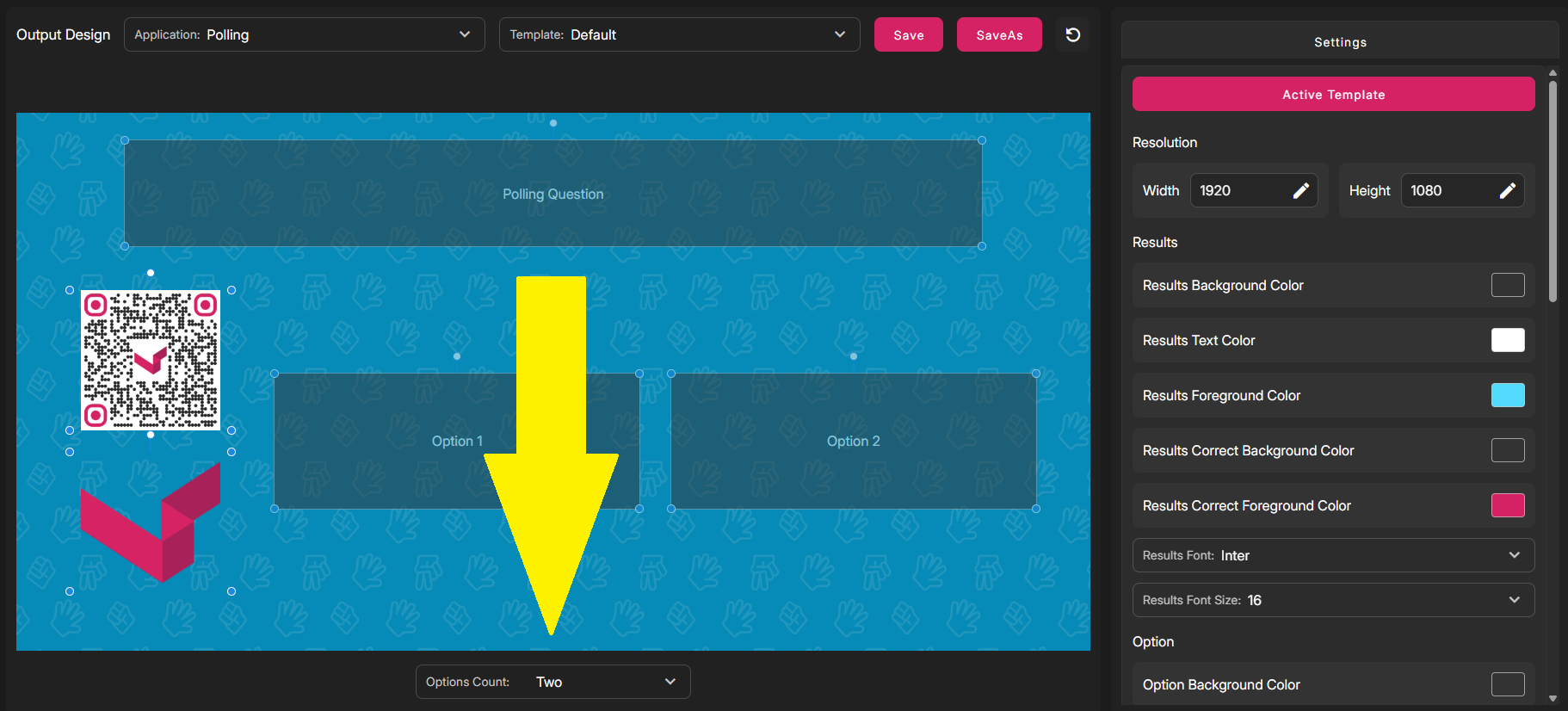
You can use the Output Designer to customize the look of Polling on the output.
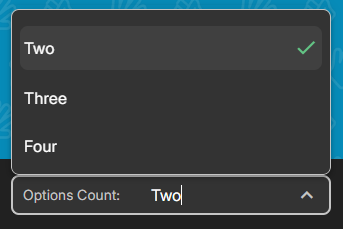
When you design your Polling output, you can use the dropdown menu at the bottom of the page to adjust the layout when 2, 3, or 4 answers are present. Note that you aren't selecting 2, 3, or 4. You are designing 3 variations of the same page. The appropriate version will be used depending on how many answers a given question has.
iii. Create Question Groups, Questions, and Answers
The next step is to create question groups and questions. When you create these, you're creating an archive of questions that you can draw from and use later in a playlist.
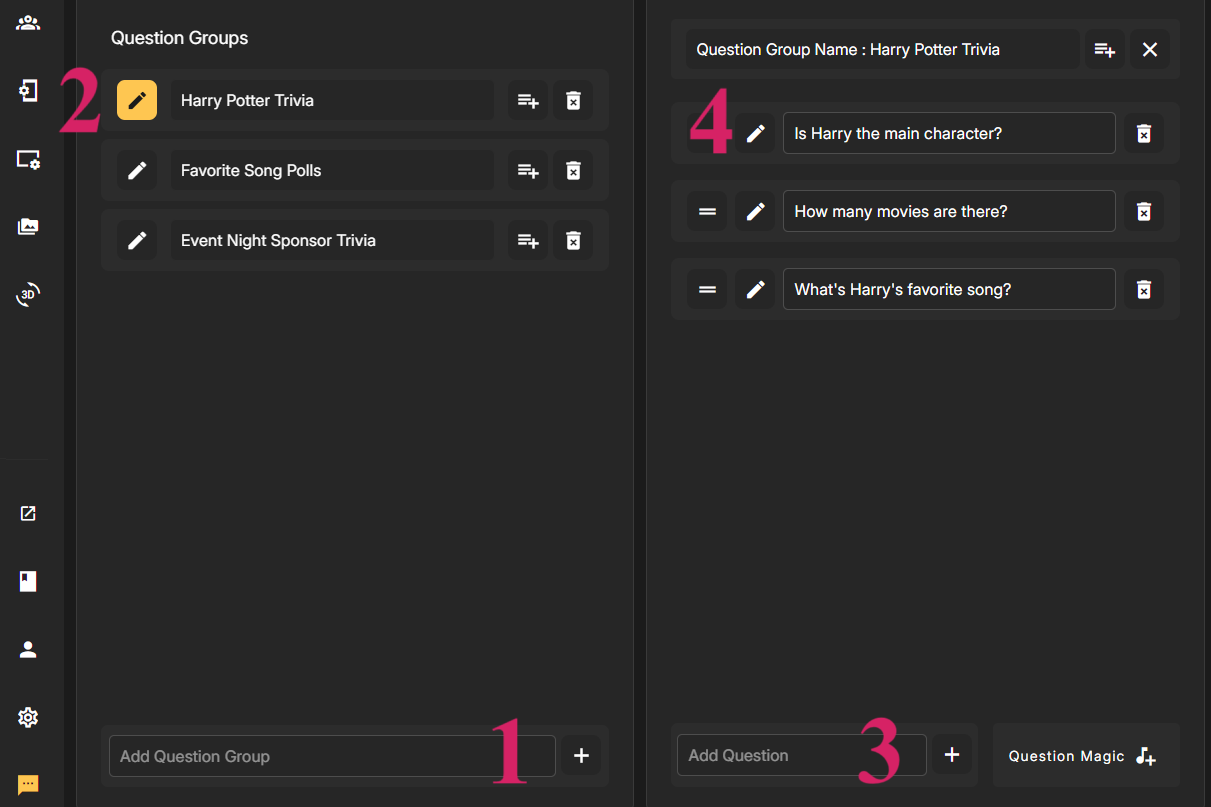
Question Groups are used to organize your questions, similar to a folder. The groups don't have any effect on the output. You can create a new question group by typing a group name into the field at the bottom left. Once you've created a question group, that group's questions will appear in the middle column. You can add questions to the group by typing a question in the field at the bottom of the middle column, and then clicking the add icon.
You can create multiple question groups and switch between them at any time by clicking the pencil icon next to the group's name in the left column. After adding a question to a group, the question becomes visible in the center column and there are a few options that you can set.
Review of Steps:
1) Create Question Group at the bottom of left column
2) Click the Pencil icon to select a Question Group, and add questions to it
3) Create Questions by typing them into the field in the bottom center of the middle column
4) Click the Pencil icon to select a Question, and edit the answers
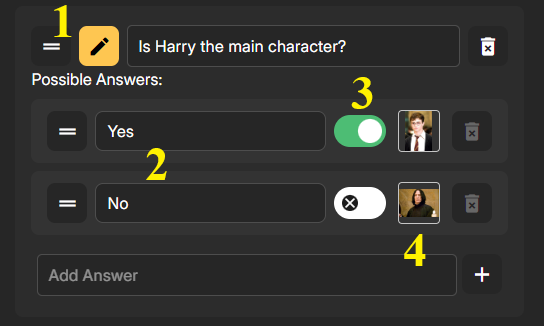
You can display 2 answers minimum, up to 4 answers max. You can also upload a thumbnail image to display next to each answer. And lastly, you can select one of the answers to be the correct answer. If you enable a correct answer, it will be considered a Trivia Question and have a trivia icon in the playlist. If there is no correct answer set, it will be considered a Poll Question and will have a poll icon in the playlist.
When Editing a Question:
1) Click the Pencil Icon to edit a question
2) Add the first 2 answers (required). Optionally, you may add a 3rd or 4th answer
3) Enable a Correct Answer to make it Trivia. If no Correct Answer is enabled, it will be considered a Poll
4) Upload a thumbnail image for each answer
iv. Using the Playlist
Now that we've covered how to create questions and question groups, we will review how to add to and use the playlist. The playlist functions similarly to a music playlist. It's the content you've chosen, in the order you've chosen.
Questions are added to the playlist by clicking the add to playlist button, next to the Question Group name. When you add a Question Group, it copies all questions to the playlist but they are no longer grouped in any way. They are now individual entries on the playlist.
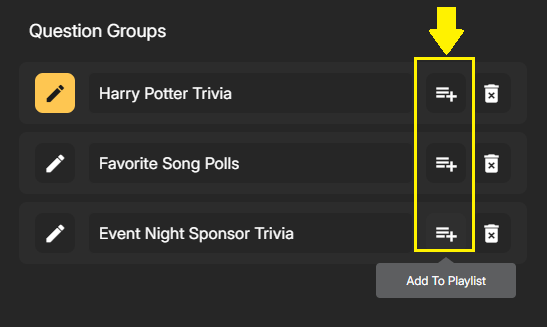
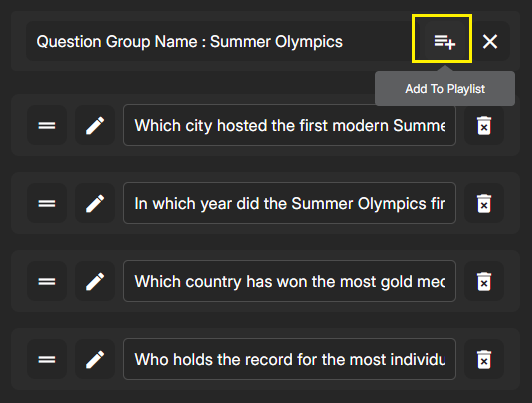
There's also an "Add to Playlist" button next in the Middle Column, next to the currently selected Question Group as seen below:
Once you've added questions to your playlist, the next step would be to reorder the playlist as you see fit. You can do this by clicking the 2 horizontal lines and dragging the entries up or down in the list. You can also freely delete questions from the Playlist, the original Question that you created will be unaffected.
Another available option is the Repeat Playlist button. If you want to run the output longer but might run out of content, you can enable Repeat. This will cause the playlist to start over at the beginning should it ever play the entire playlist. You can also click the Eye icon to Skip / hide any upcoming questions that you no longer want to display.
When you are ready to begin playback, simply click the play button at the top. You'll see the two windows displaying the On Air question, and the Up Next question. The moderator will manually advance all slides; this is done by clicking the next arrow in the top right.
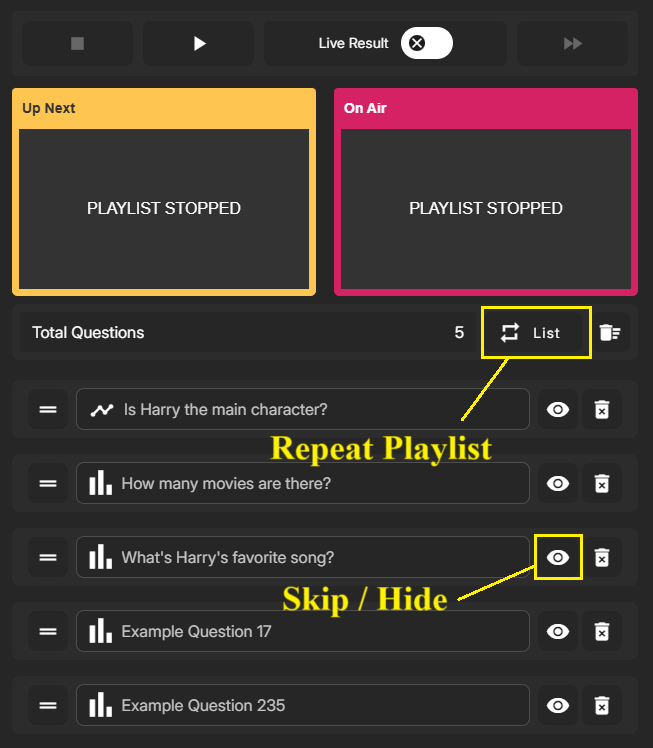
When playing the Playlist, you can have Live Results ON or OFF. When Live Results are OFF, the fan results are shown on a separate results slide. When Live Results are ON, the fan results are shown at the same time as the question.
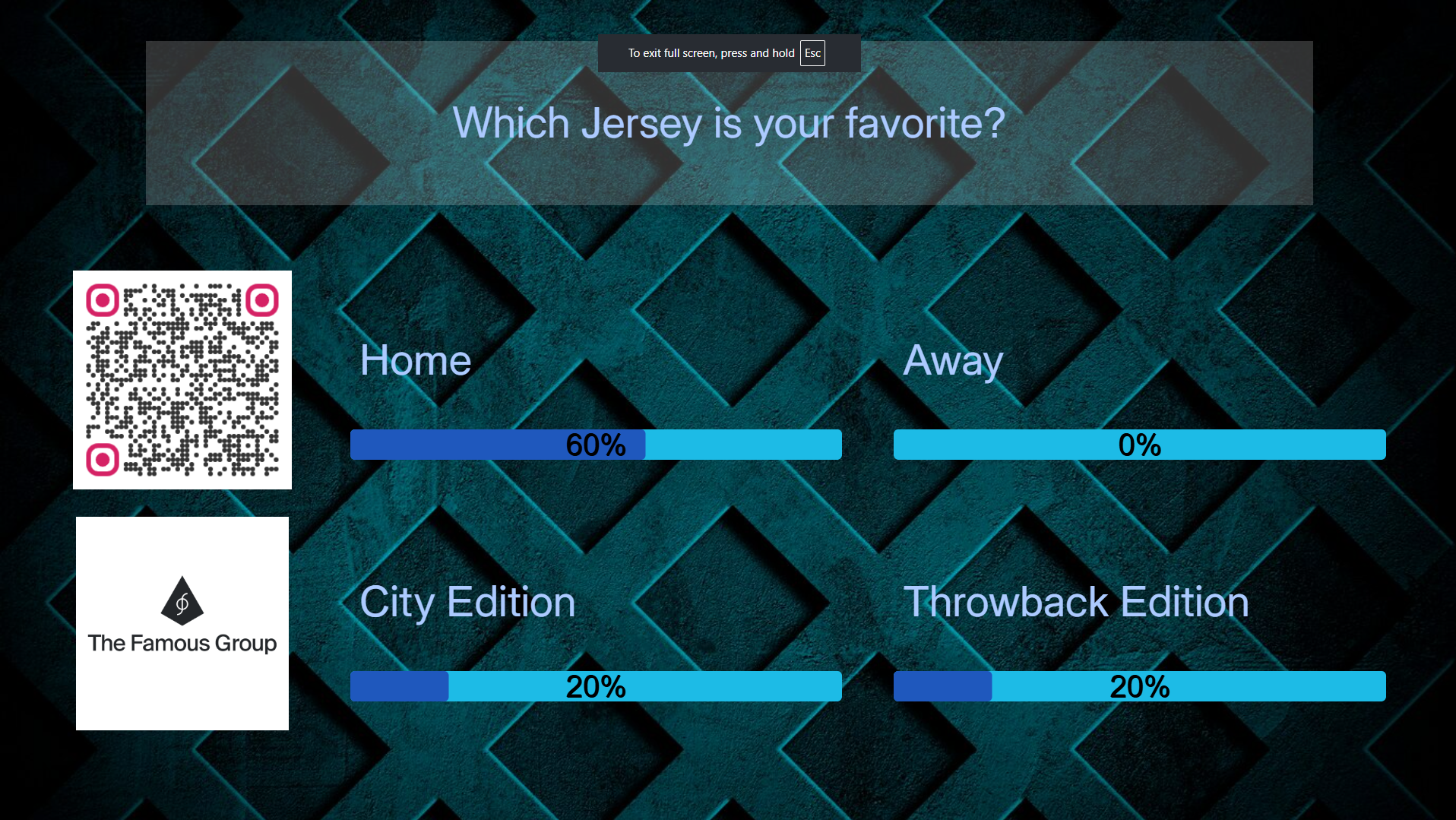
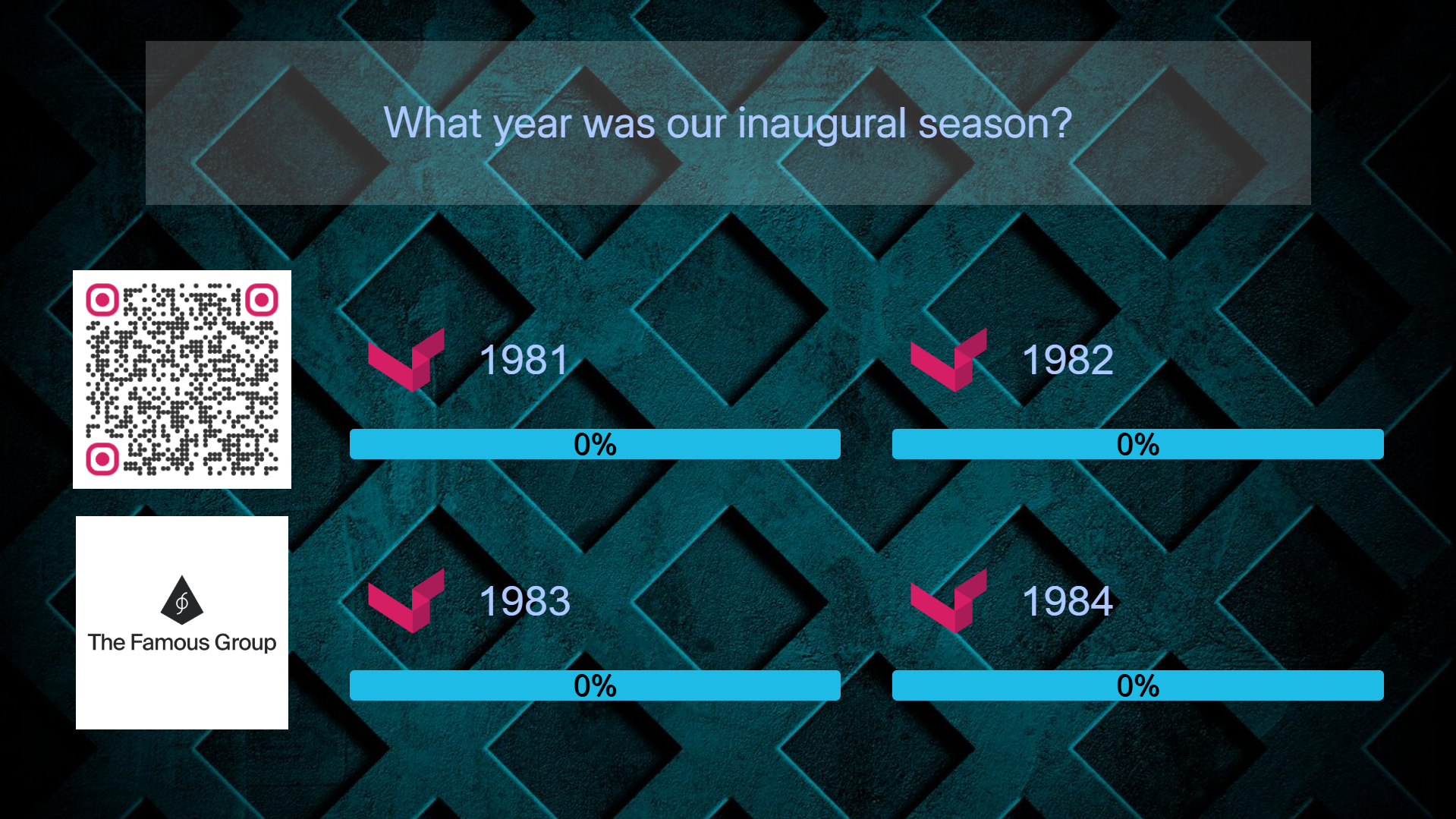
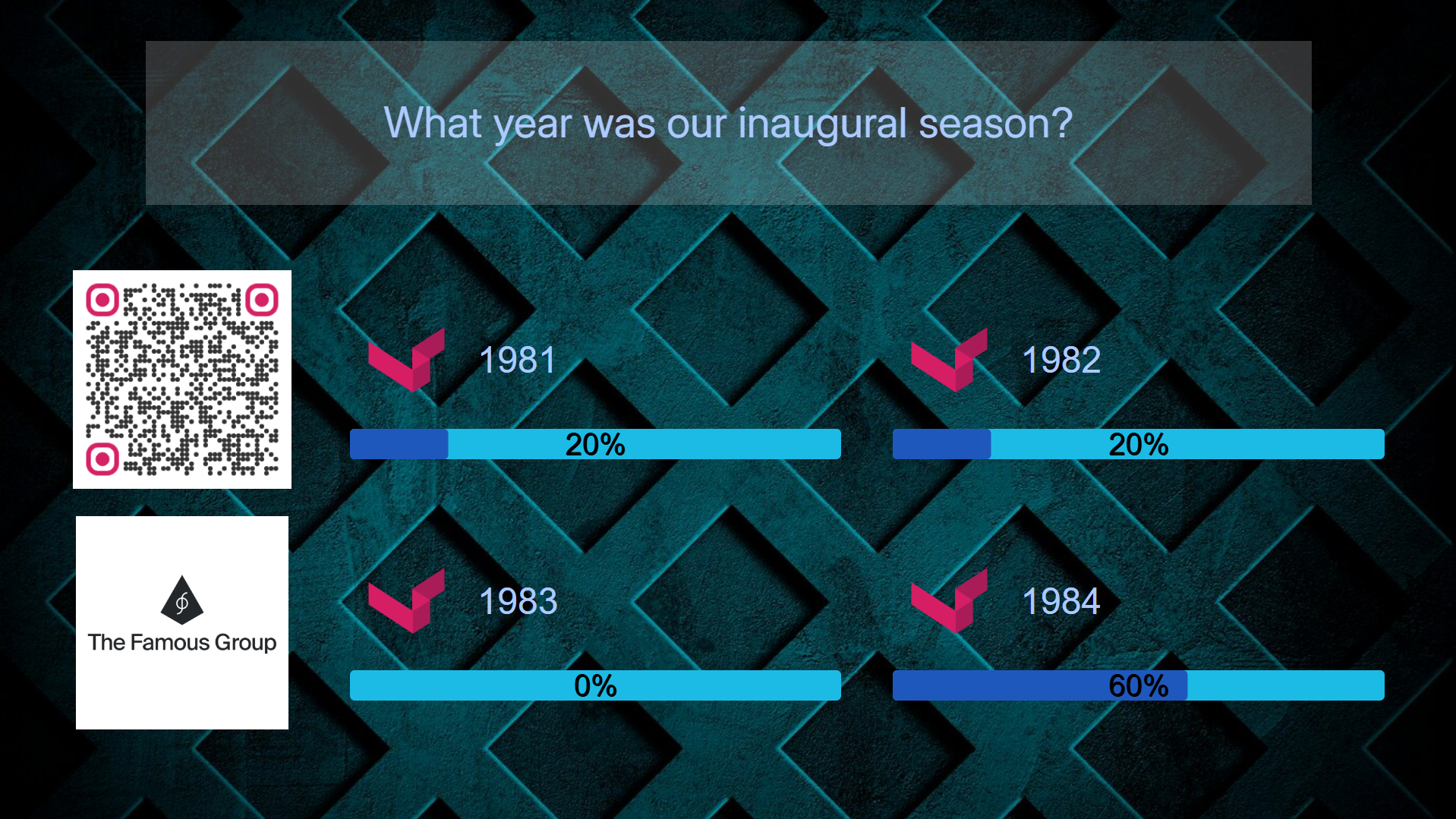
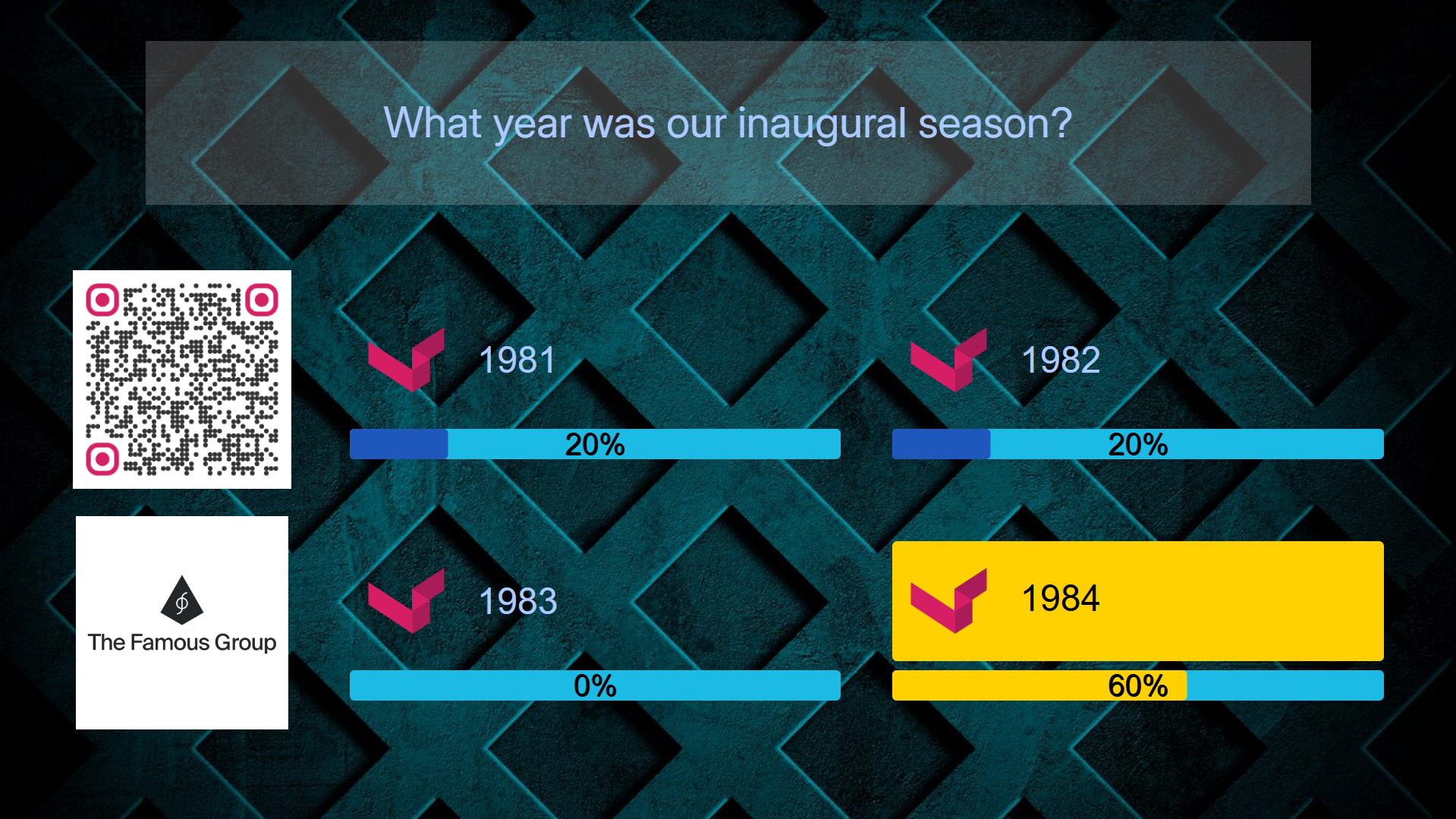
Slide Sequence with Live Results OFF
- Poll: 1st slide is the Question, 2nd slide is the Fan Results
- Trivia: 1st slide is the Question, 2nd slide is the Fan Results, 3rd slide is the Correct Answer
Poll, Live Results OFF (2 Slides)
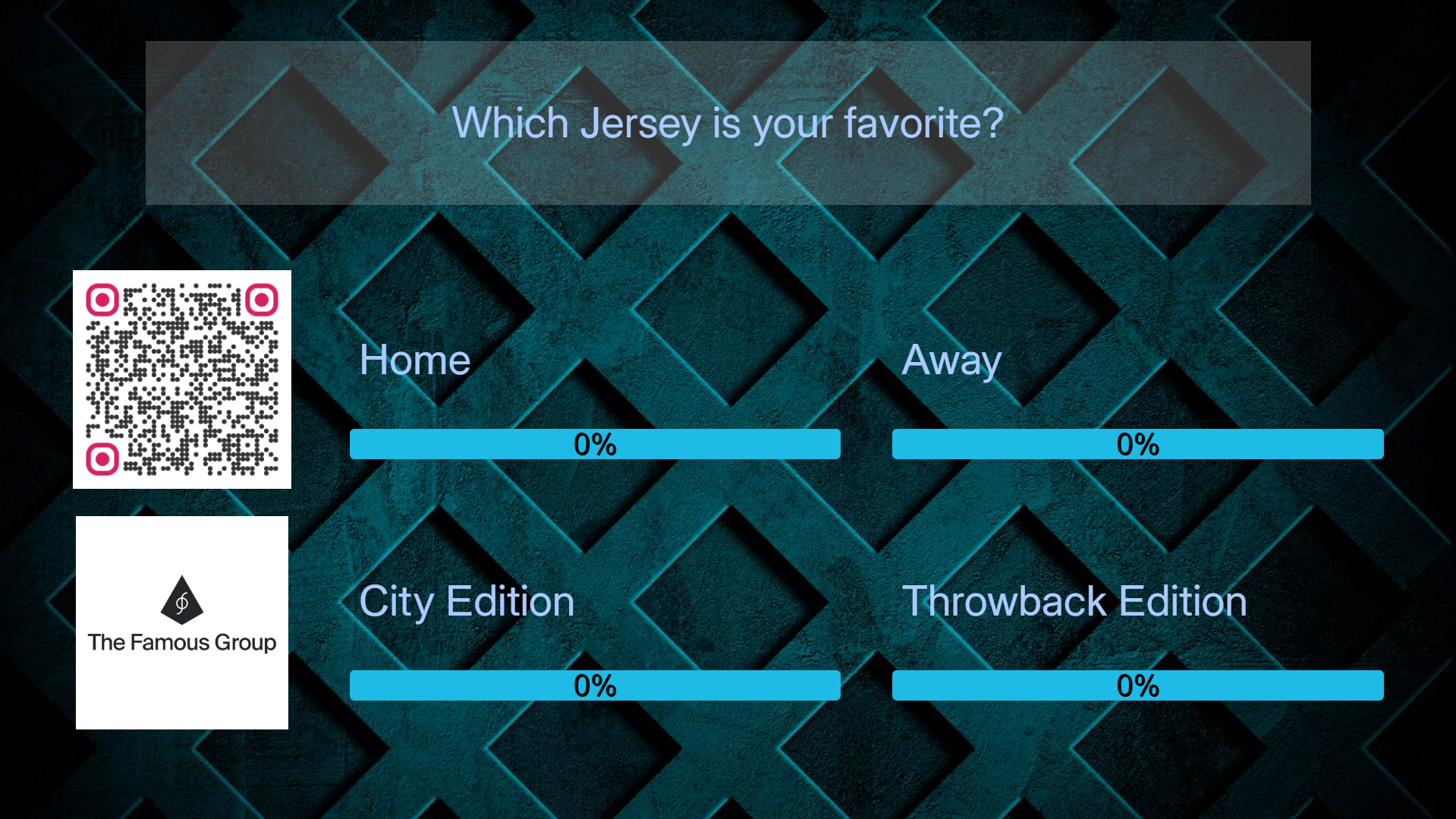
Trivia, Live Results OFF (3 Slides)
If the Live Results option is toggled On, the playlist tempo is slightly faster because the fan votes are shown at the same time as the questions, and so there's one less results slide to display.
For a Poll, the only slide displayed is the Question along with fan results. For Trivia, the first slide displays the question and fan results. The second slide displays the correct answer.
Slide Sequence with Live Results ON
- Poll: 1st slide is the Question and Fan Results
- Trivia: 1st slide is the Question and Fan Results, 2nd slide is the Correct Answer
Poll, Live Results ON (1 Slide)
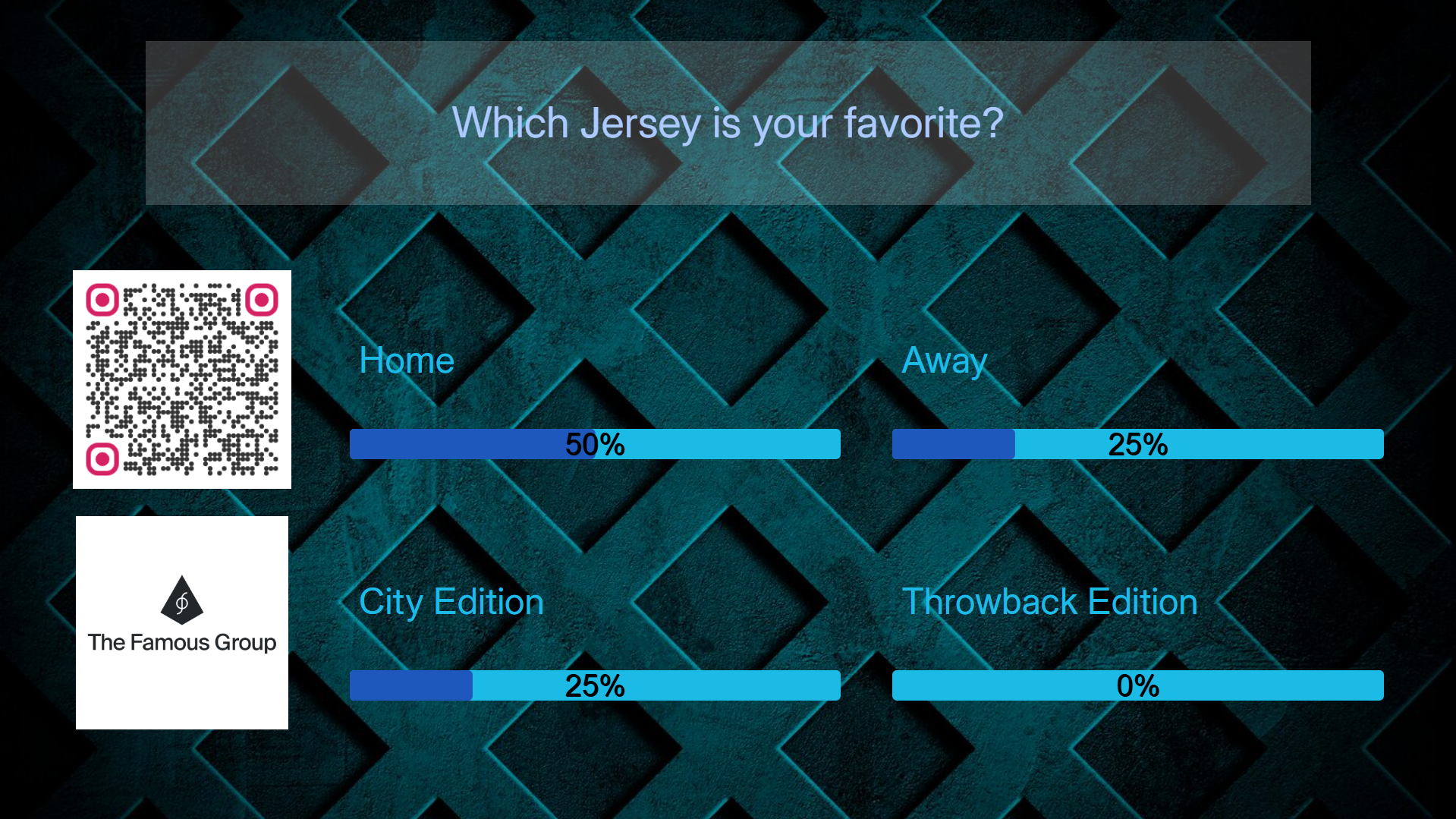
Trivia, Live Results ON (2 Slides)
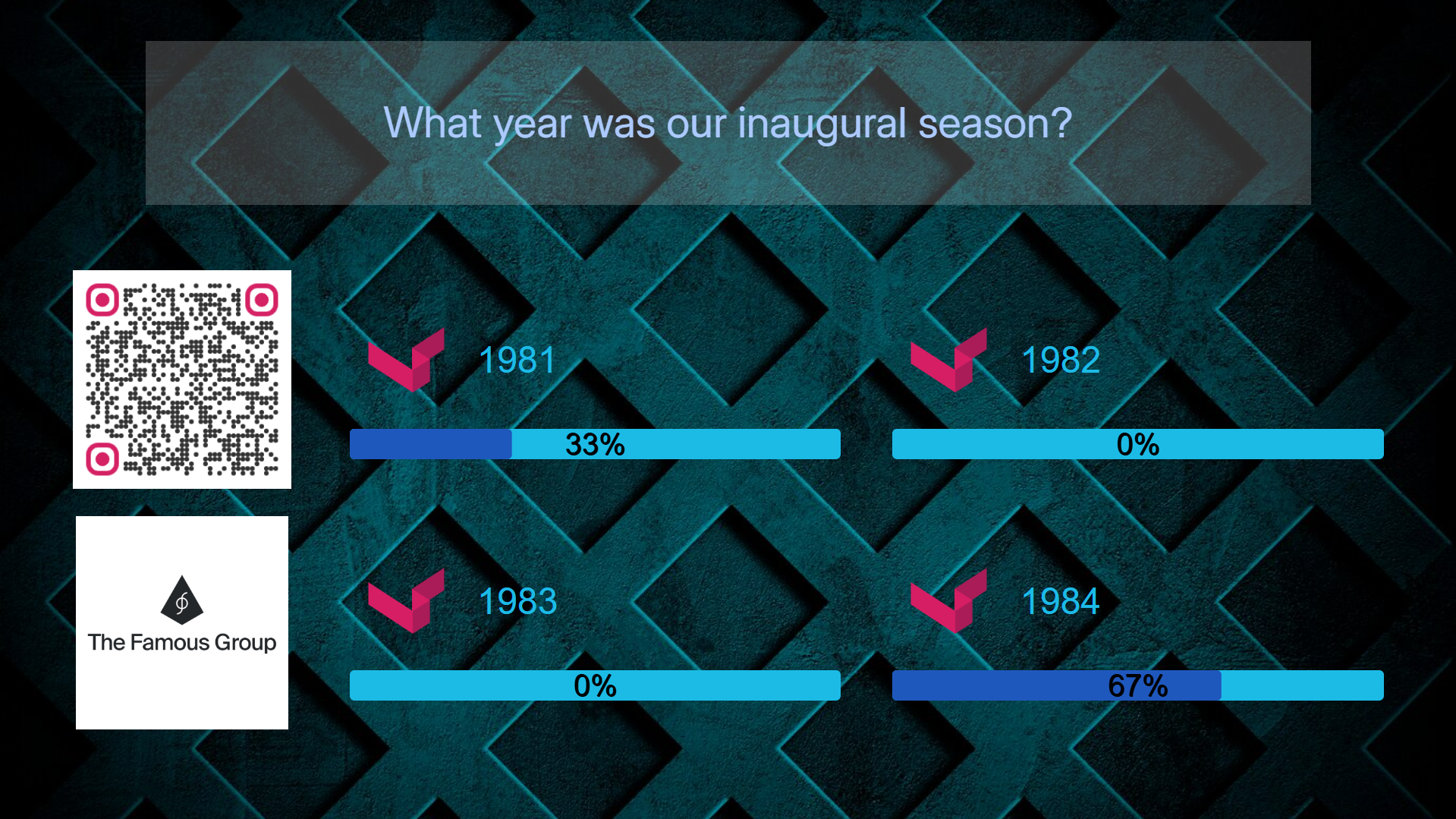
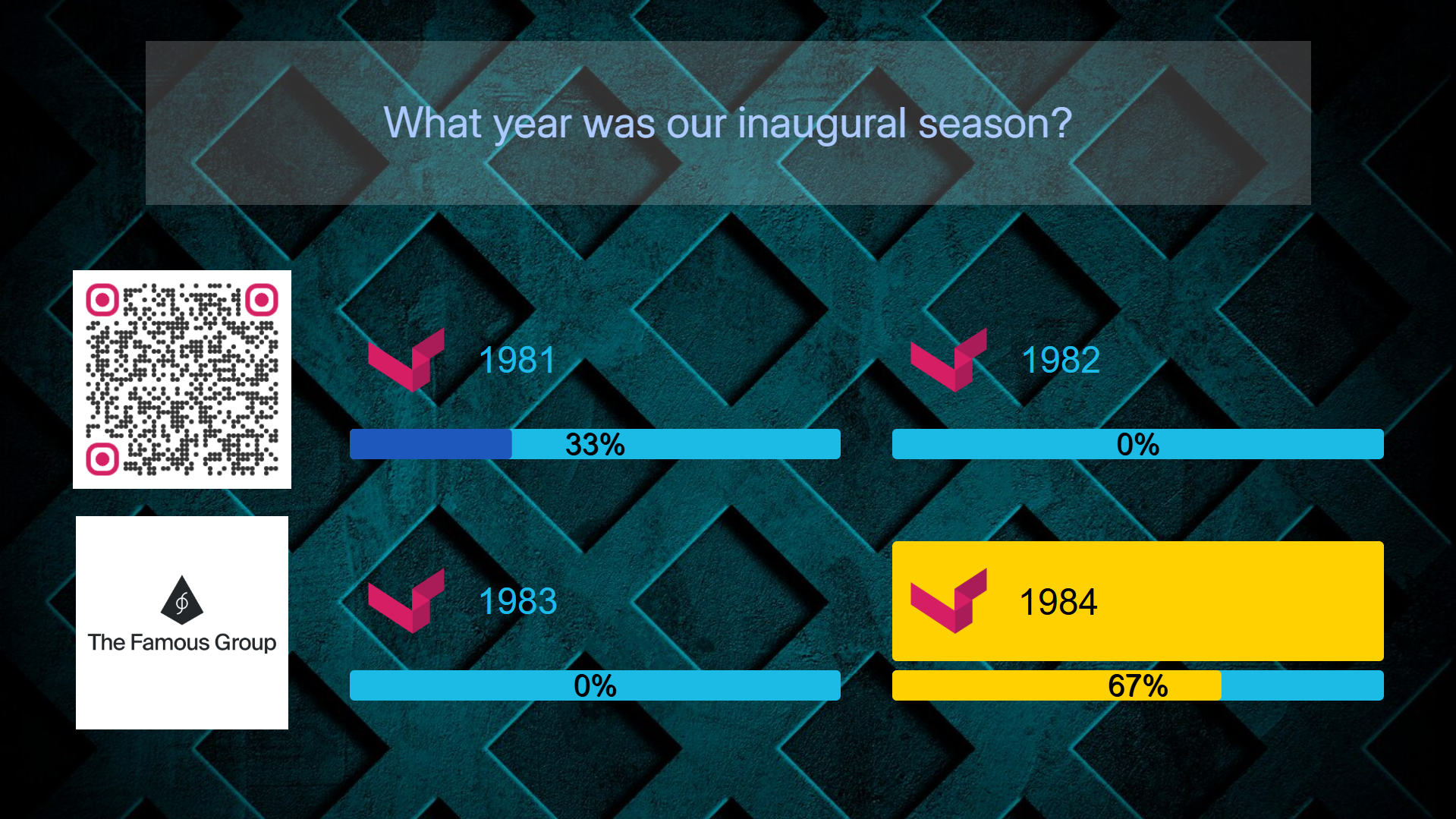
v. Generating Questions using Question Magic
The final feature is Question Magic. You can allow the AI to generate some sample questions for you to use or draw inspiration from. To use Question Magic, first create and select a question group for the generated questions. Then click the Question Magic button to open the dialogue.
Simply select if you'd like Trivia, Polls, or a Mix. Then select the number of questions you'd like, and the number of answers for each. Lastly, describe the theme of your questions, and click Process. The generated questions will be created and you can edit them and add them to the playlist if you want to.

vi. Leaderboards
Topics Covered
- Prizes vs No Prizes
- Enabling Data Fields so you can contact the winners
- How to view Current Leaders (while Poll is playing)
- How to remove players
- How to view Official Winners (once Poll has ended)
- How to view Winners' Contact Info
- How to set up Winners End Page + Redirect
- Adding Leaderboards to the Output (Final Leaderboard, Leaderboard Overlay, Inline Leaderboard)
- Customizing Leaderboards
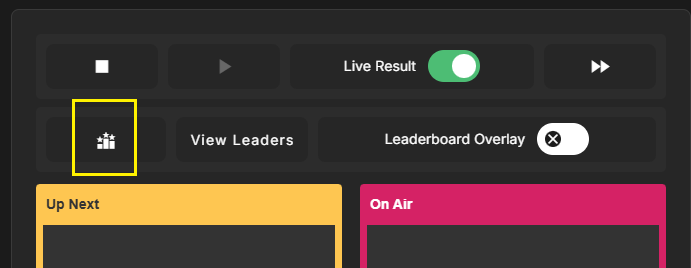
- "Jump to End" button
The Leaderboard functionality allows fans to complete against each other in an attempt to place at the top of the leaderboard. Answering Trivia correctly gives points, and answering faster than other players gives even more points!
The scoring system is already in place, and cannot be modified. Simply run Polling like you normally would, and you can view the winners at the end. (Note that Poll Questions can be used freely in the same playlist as Trivia Questions, but no points are awarded for Poll Questions since they are opinion based.)
There are 2 general ways to use the Leaderboards:
Method 1, Just for Fun
- The 3 winners see a "Winners End Page" and a "Winners URL Redirect"
- There are no prizes awarded
- The Moderator doesn't need to contact the winners and so Data Fields are NOT required for Onboarding
Method 2, Prizes are Awarded
- The 3 winners see a "Winners End Page" and a "Winners URL Redirect"
- There ARE prizes awarded
- The Moderator needs a way to contact the winners once the Poll has ended, and so Data Fields MUST be used for Onboarding
Enabling Data Fields so you can contact the winners after Polling ends
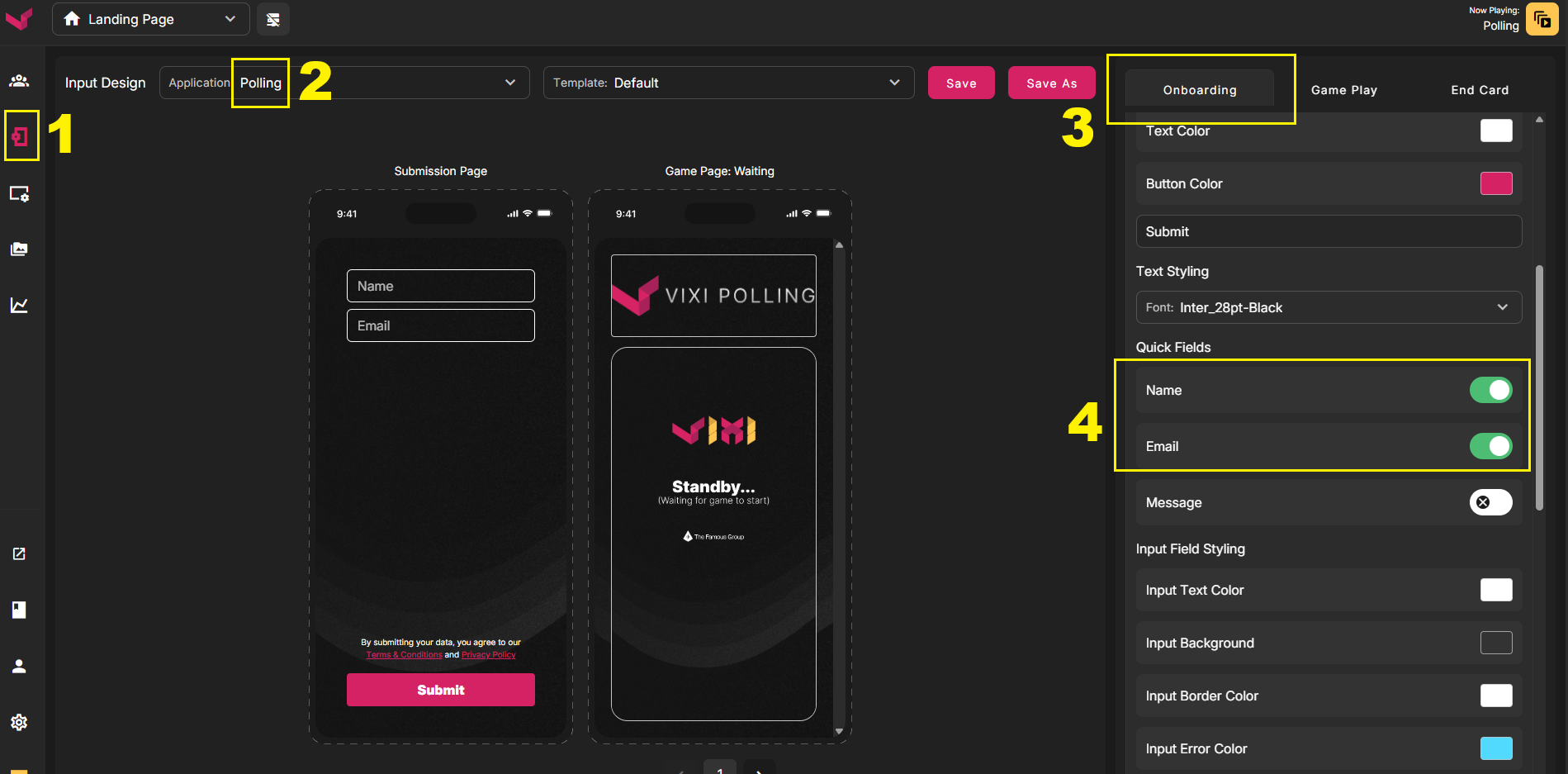
- In the Left Nav select Phone Design
- Select Polling in the first dropdown
- Double check that you are on the Onboarding Tab, switch there if needed
- Scroll down and then Toggle ON the Name and Email fields
- (Optional) Scroll down a little more and click the Required checkbox next to each. This will force fans to fill out these fields before they can advance
- Click the SAVE button
How to View CURRENT LEADERS (before a Poll has ended)
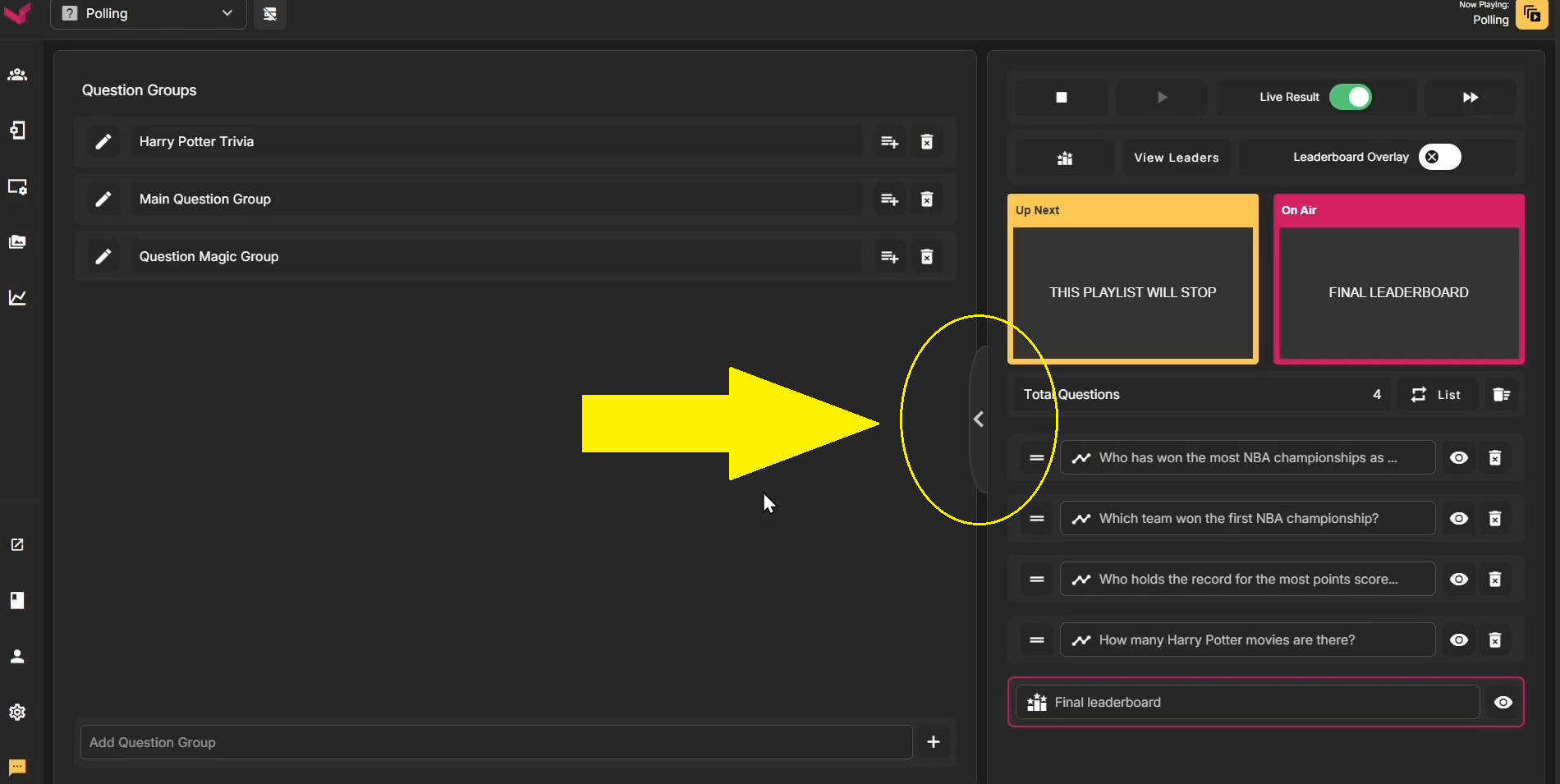
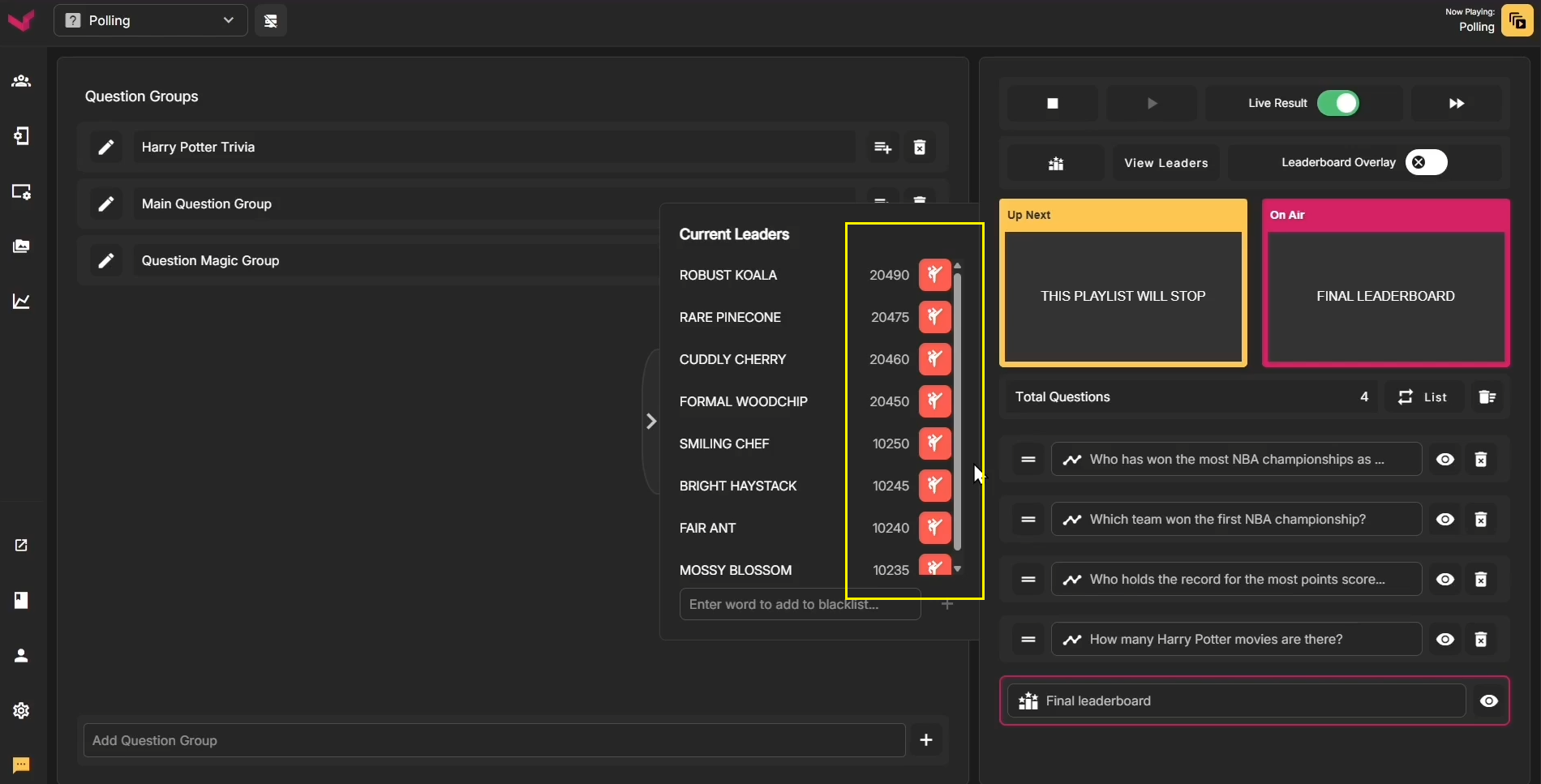
While a Poll is still playing, you can preview the Current Leaders using this slide-out menu. While there are profanity filters used for Custom Names, its possible a fan could submit an inappropriate name without using a bad word. If this occurs, you can instantly remove and ban that mobile device from the Leaderboard system by clicking the Kick button next to their name.
In addition to viewing the Current Leaders, this menu is where you will Police the names on the Leaderboard if needed.
How to view OFFICIAL WINNERS (once a Poll has reached the Final Leaderboard and ended)
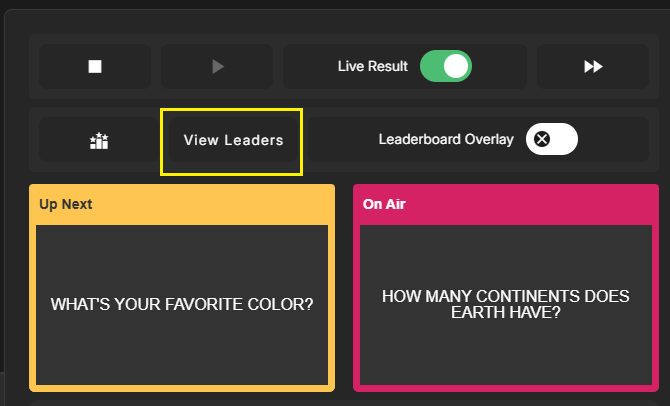
i. Click the "View Leaders" button - this moves you to the Capture page with the "Polling Leaders" filter enabled
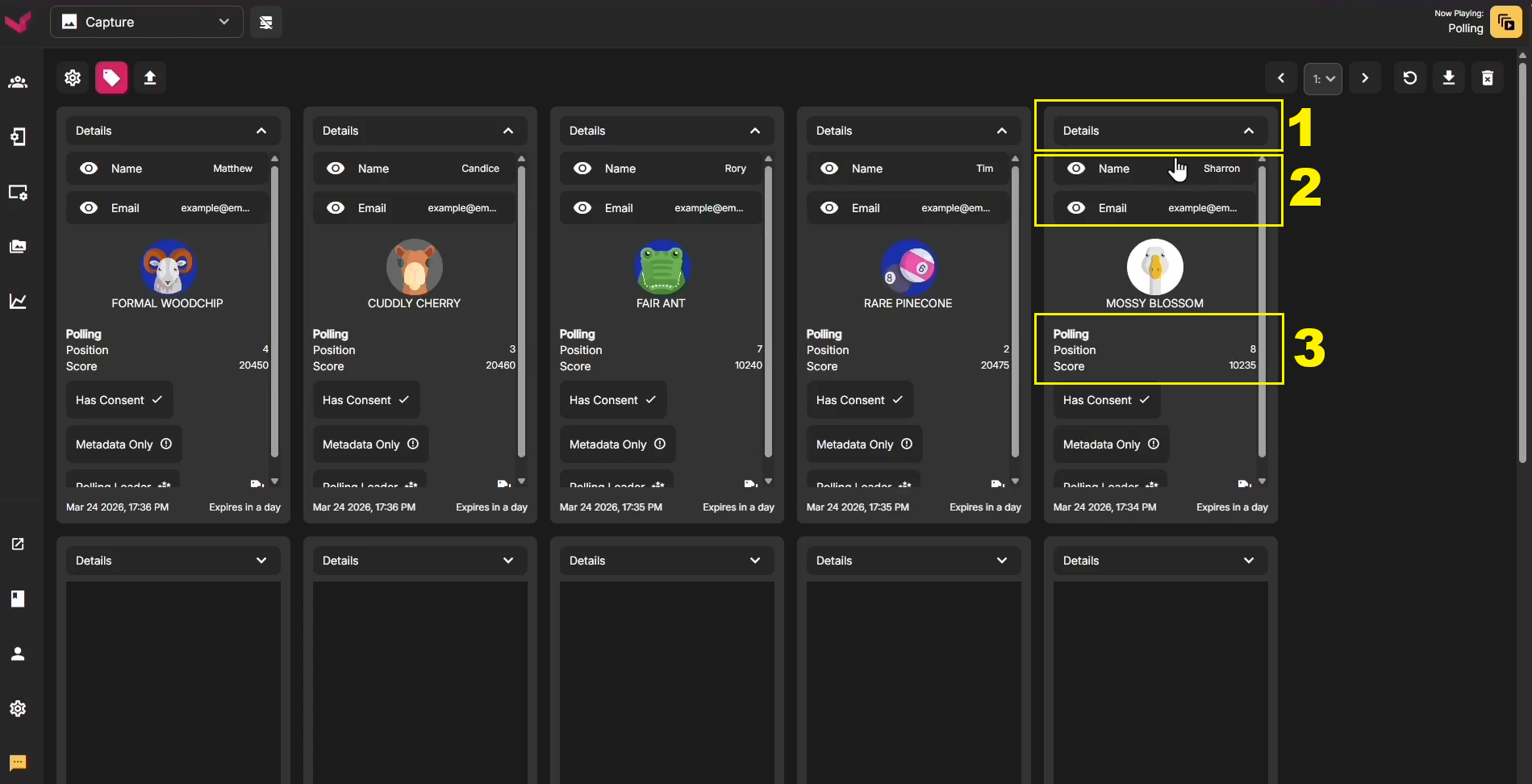
ii. Once on the Capture Page, you'll see the Cards for each of the top 10 finishers. Note that only the 1st, 2nd, and 3rd place finishers are considered "official winners", however the top 10 leaders are all displayed on this page. Also, the important information is on the reverse side of the cards, so you'll need to click the DETAILS tab at the top of each Card to view the back side.
Use these steps to view Winners' CONTACT INFO
1. Click DETAILS
2. Observe Name + Email. Double click the Name or Email text to highlight, then right click and select COPY
3. Observe Final Polling Position
4. Contact them outside of the Suite with whichever means you prefer, using the data collected here
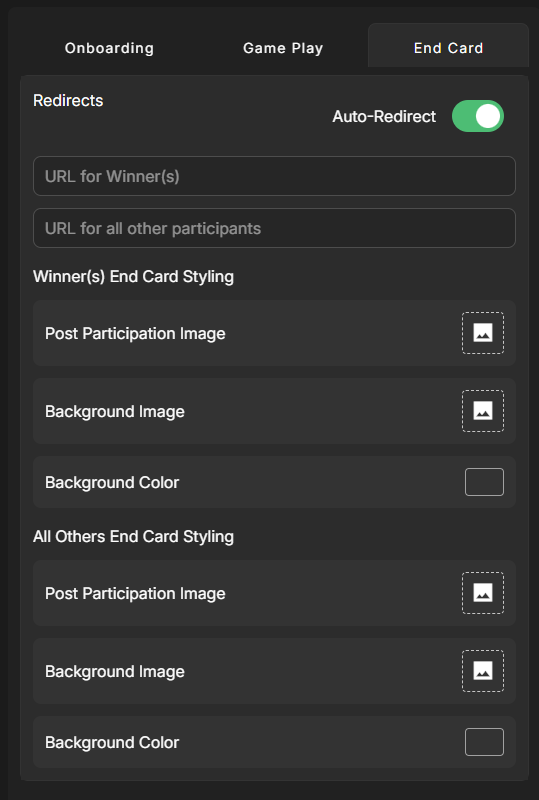
How to set up Winners End Page + Winners Redirect
The top 3 finishers are considered the "Official Winners" - they see a special End Page and URL if you'd like them to:
- In the Left Nav, select Phone Design
- Select Polling in the dropdown
- Click the End Card tab
- On this tab you can set the redirect for Winners, and for all others
- On this tab you can also upload a custom End Card images for Winners, and for all others
Adding Leaderboards to the Video Board Output (3 options)
There are 3 ways you can display the leaderboard rankings on your output. The first way is the standard method that should always be used. The 2nd and 3rd methods are options that you can choose to include in addition to the 1st method.
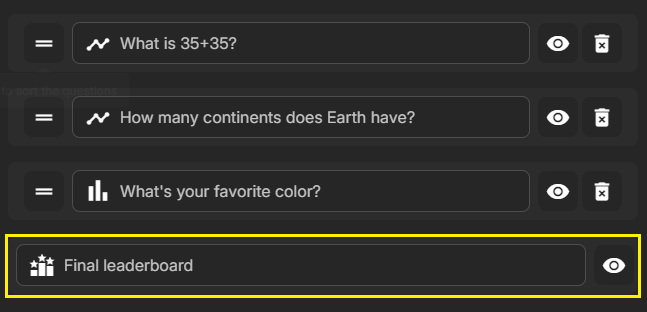
1. Final Leaderboard
The Final Leaderboard is a results slide that's automatically added to the end of your playlist. When you advance to this slide, it displays the top finishers in a leaderboard format.
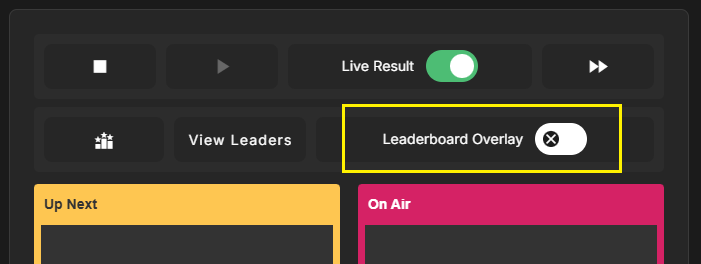
2. Leaderboard Overlay
This is a full-screen leaderboard display that can be toggled on or off at any time. Use the toggle switch at the top of the playlist to activate or deactivate this leaderboard. When it becomes activated, a full-screen leaderboard is displayed. When it's deactivated, the output returns to the exact state it previously was.
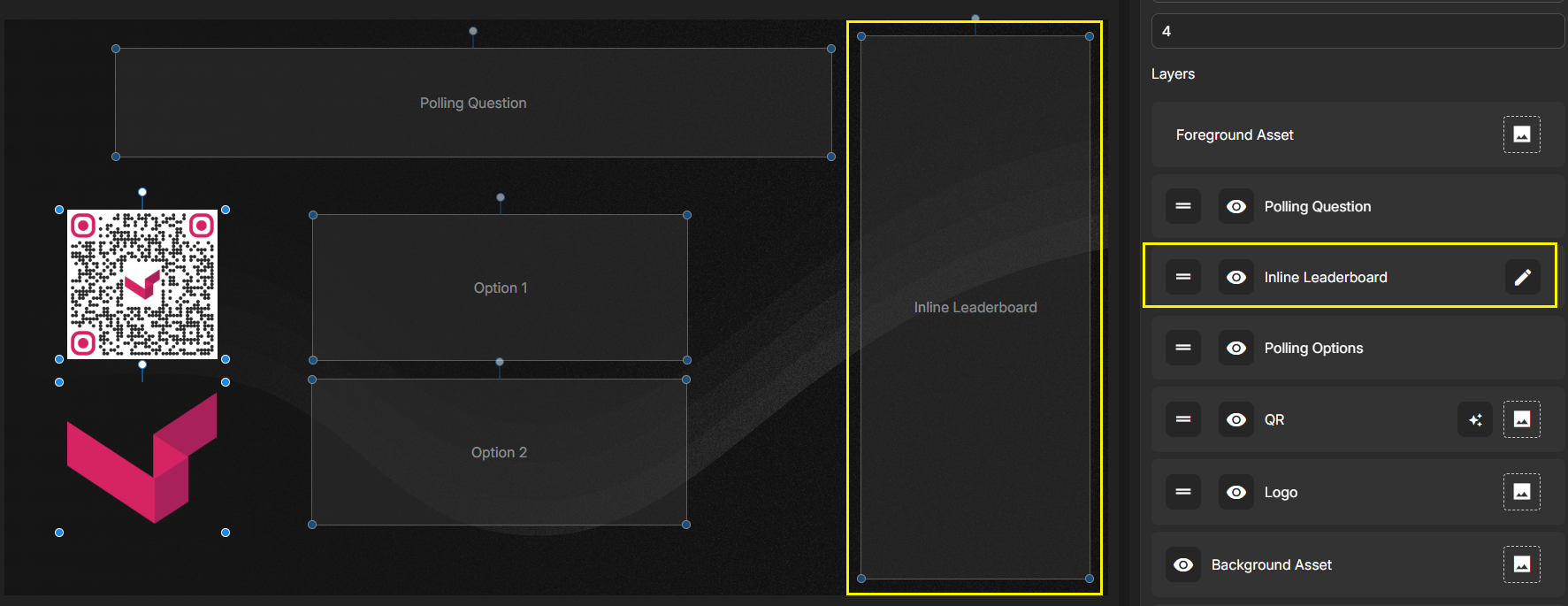
3. Inline Leaderboard
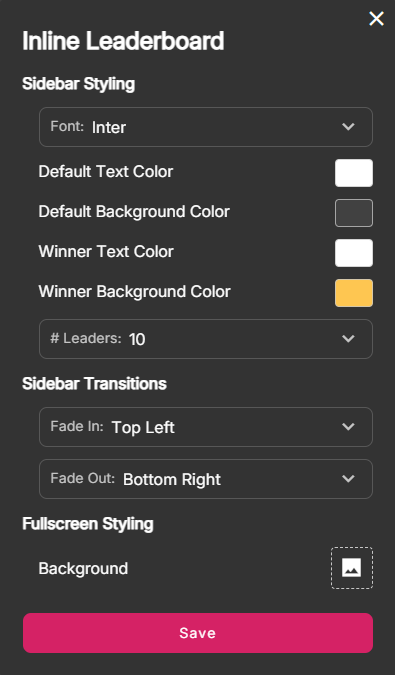
This is a smaller leaderboard that you can add to the output right next to the question and answer options. On the Output Design for Polling, you can unhide the Inline Leaderboard to have it always display on your Polling Output. Note that you'll have to shift some of the assets to make room for this leaderboard if you decide to use it.
Customizing All 3 Leaderboards
You can customize these 3 leaderboards by using the Inline Leaderboard customization menu. For the (1) Final Leaderboard and the (2) Leaderboard Overlay, you can upload a 1920 x 1080 background at the bottom. For the (3) Inline Leaderboard, you can select some styling options as well as how many players are displayed.
1. In the Left Nav, select Output Design and choose Polling in the dropdown
2. Scroll down until you see the Inline Leaderboard option
3. Click the eye icon to hide/display the Inline Leaderboard
4. Click the Pencil to open the Customization Menu

"Jump to End" Button
This is more of an emergency button, as it causes the playlist to jump directly to the Final Leaderboard, and ends the Polling activation. This will skip any questions that haven't been seen yet, but it allows you to instantly end the Poll on a moments notice without losing the results. A typical use for this would be if you are running out of time in the segment and need to display the winners before time is up.
vii. Custom Avatars & Custom Names
These two features allows fans to have more control of their Polling identity. By default, users are automatically assigned a random avatar and name when joining a Poll. You have the option to allow them to select their own avatar, name, or both.
To access these settings:
- In the Left Nav, select Phone Design
- Select Polling in the dropdown
- On the Onboarding tab, scroll down to the Avatar Creation section
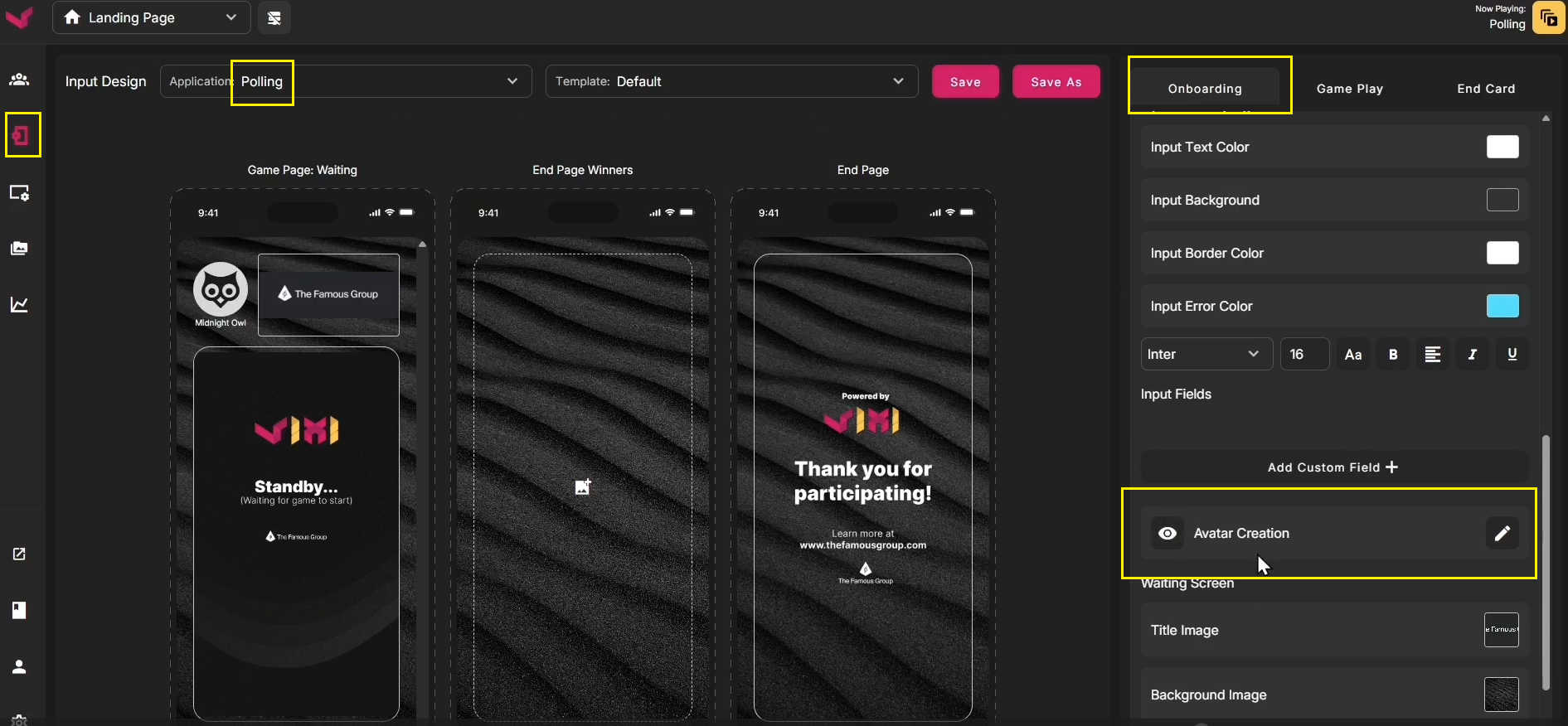

By default, Avatar Creation will be hidden/disabled. This causes fans to skip Avatar Selection, and Custom Name selection. To enable either of the options, Unhide Avatar Creation and Save. Then, click the Pencil to Edit
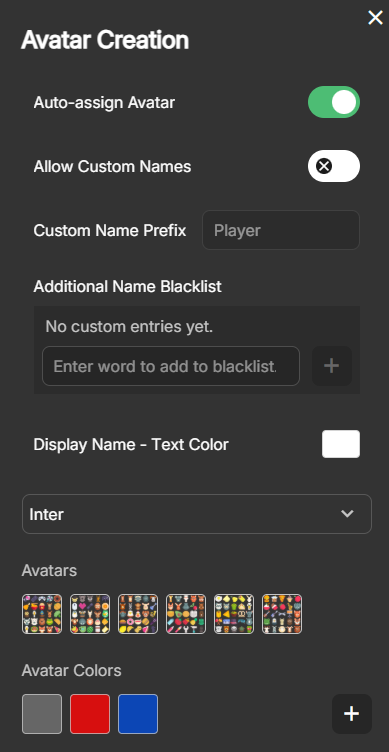
Auto-assign Avatar: This is defaulted to ON. If you'd like fans to select their own Avatar, turn this option OFF
Allow Custom Names: This is defaulted to OFF. Turning this ON allows fans to submit a custom name
Custom Name Prefix: If you allow fans to submit a custom name, they get 1 attempt. If they submit an invalid name, they are instantly assigned an autogenerated name based on the Custom Name Prefix you're using. The default Custom Name Prefix is "Player". Anyone who submits an invalid name will automatically receive the name "Player1234" or "Player5678" etc.
You can change this prefix field to cause them to be renamed something else, such as "Superfan2345" etc
Blacklist: You can add any additions words to the Naming Blacklist, or remove them with a single click
Display Name Text Color: The moderator can decide what color text all avatar names are displayed in
Custom Font Dropdown: Use this dropdown to upload or select a custom font
Avatar Colors: By default, there's only 1 choice for Avatar Background Color. Use this section to add more choices for Avatar Background Colors. Click the PLUS to add another choice, and then click that choice to assign a color
viii. Alternate Modes: Head to Head, Elimination, Predictive (Coming Soon!)
By default, your Polls will use "Classic" mode. There are now 3 additional mode that you can enable/disable. Only 1 alternate mode can be used at a time.
Head to Head:
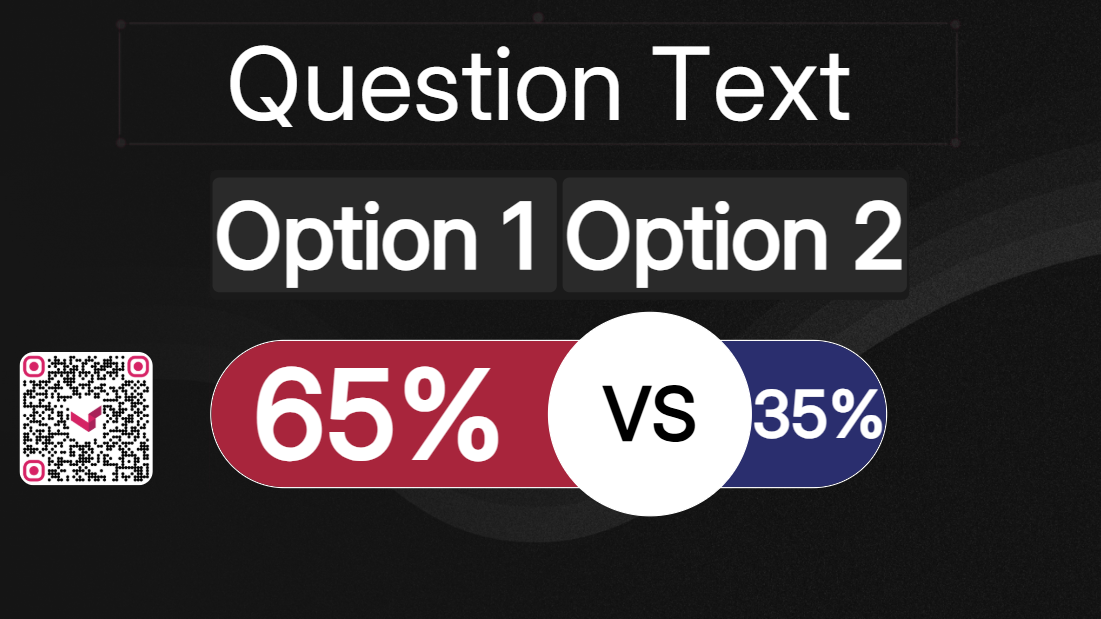
When using this mode, each question has only 2 answer options. Those 2 answer options are displayed Head to Head using a special output layout specific to this mode.
Elimination:
Giving an incorrect answer eliminates a player from the game! Answer everything correctly to win.
Predictive:
This is used when you want fans to "guess the winner", but the winner isn't known yet. The best example is a live race. You can ask fans to guess the winner, and once the race has concluded the moderator can manually select the winner before continuing with the results steps.
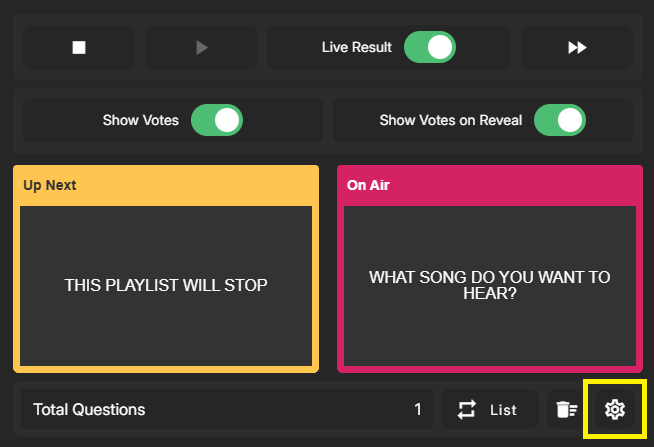
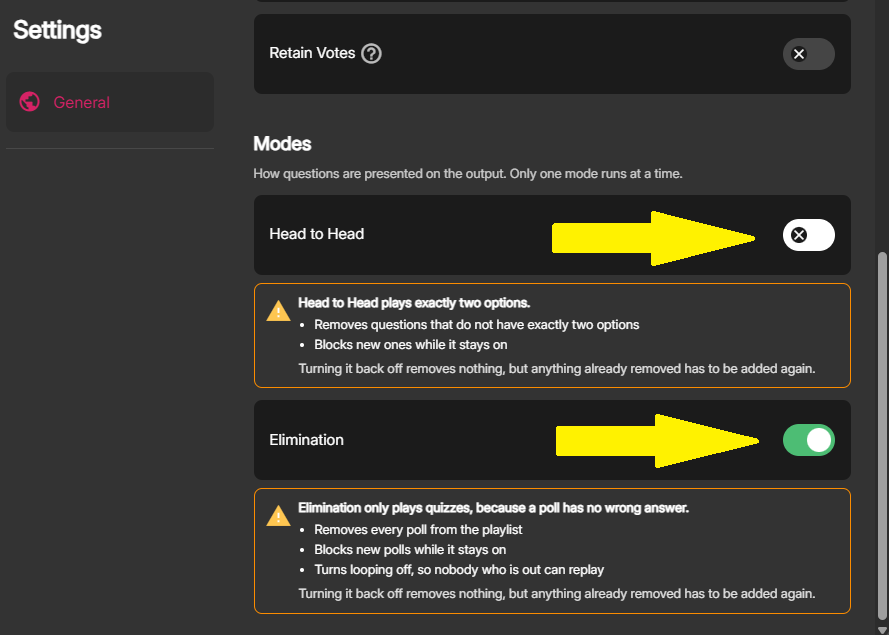
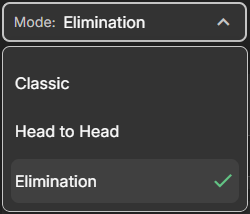
Head to Head and Elimination modes are enabled/disabled from the Polling Playlist settings menu as seen below. Predictive Polling is accessed using the App dropdown in the Header. (We'll look at that after Head to Head and Elimination.)
Enabling Head to Head or Elimination Mode
Using Head to Head Mode:
Head-to-Head Mode is used when you want to compare specifically TWO answer options against each other. In this mode, you can only use questions that have specifically 2 answer options. The questions can be Poll or Trivia, but they must contain only 2 answer options.
The Output highlights the two choices in a layout specific to this mode. Just like in Classic mode, you have the option to use Live Results: ON so that the results adjust in real time. Or you can have Live Results OFF so that the results don't come until the Reveal slide.
When you enable Head to Head in the Playlist Settings Menu, the following rules are applied until Head to Head is toggled Off:
- Removes questions that have more than 2 options. It MUST have only 2 options to be used in Head to Head
- Styles the output differently
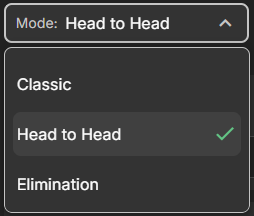
Be sure to use the Output Design page, and change the dropdown in the upper right corner to "Head to Head Mode" so that you're seeing a preview of Head to Head mode.
Dropdown on OUTPUT DESIGN page:
Sample Head to Head flow:
- Create 3 Poll Questions and add to playlist
- Enable Live Results (at the top of the playlist)
- Enable Head to Head Mode (via playlist settings)
- Run the Playlist as you normally would (you can loop it if you want)
Using Elimination Mode:
Elimination Mode is used as a "Last Person Standing" style game. Participants must answer every question correctly to remain in the game. Players who answer any question incorrectly are immediately sent through the post participation flow (they see the End Card and/or URL, depending on your setup).
If you enable Elimination Mode via the Polling Settings menu, the following rules are applied until Elimination is toggled Off:
Setup Rules Changes:
- Removes all Poll questions from the playlist, and prevents them from being added. Only Trivia Questions can be used
- Turns off Playlist Looping, so nobody who is out can replay
Gameplay Rules Changes:
- Anyone who answers a question incorrectly is eliminated and immediately sent to the post-participation flow
- After all questions have been played, all remaining players are considered Winners
- You can optionally enable the "Remaining Players" feature in Output Design to display the number of players remaining after each round
When customizing Elimination Mode in the Output Design section, be sure to switch the dropdown in the top right to Elimination so that you're seeing a preview of Elimination mode.
Dropdown on OUTPUT DESIGN page:
Sample Elimination flow:
- Create 4 Trivia Questions and add to playlist
- Enable Elimination Mode (via playlist settings)
- Run the Playlist (it will NOT loop/repeat)
- Anyone who answers all 4 questions correctly is a winner, and is given the Winners End Card and Winners URL. Everyone else gets the "regular" End Card and URL
Using Predictive Polling Mode:
Predictive Polling allows participants to Predict the output of an upcoming event, such as a race. Fans would lock in their selection before the race. Once the race has completed, the moderator will then manually flag the winner. Once the Poll continues, fans would see if they correctly Predicted the winner!
Predictive Polling is accessed separately from the standard Polling App. Use the dropdown in the header, and select Predictive Polling. There are a few differences here between Predictive Polling and the standard Polling App:
1. Predictive Polling uses its own Standalone URL for the output. Instead of "Default Output", it uses "Predictive Polling Standalone"
2. Predictive Polling doesn't use the Polling Playlist. It can have 1 question active at a time, and there's no way to display questions back-to-back without a short setup period in between.
Sample Predictive Polling flow: (using a Mascot Race as an example)
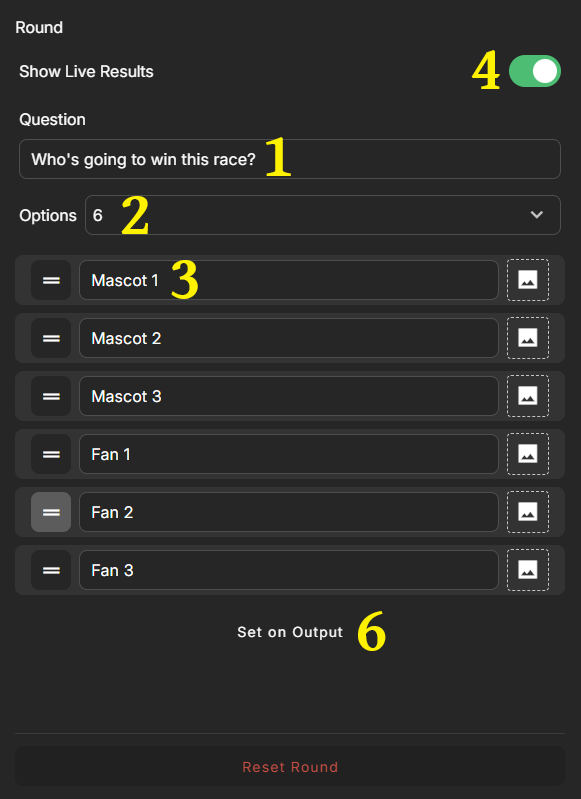
1. Enter a question in the "Ask a question..." field
2. Use the dropdown to select the number of answers you wish to have
3. Enter each Answer Option in the fields labeled "Option Name"
4. Decide if you want to use Live Results On or Off. Use the toggle to make your selection
5. Open the Predictive Polling Standalone URL (from the Left Nav, Input/Output Links)
6. Click Set on Output to display your question on the output. You can now broadcast to the video boards
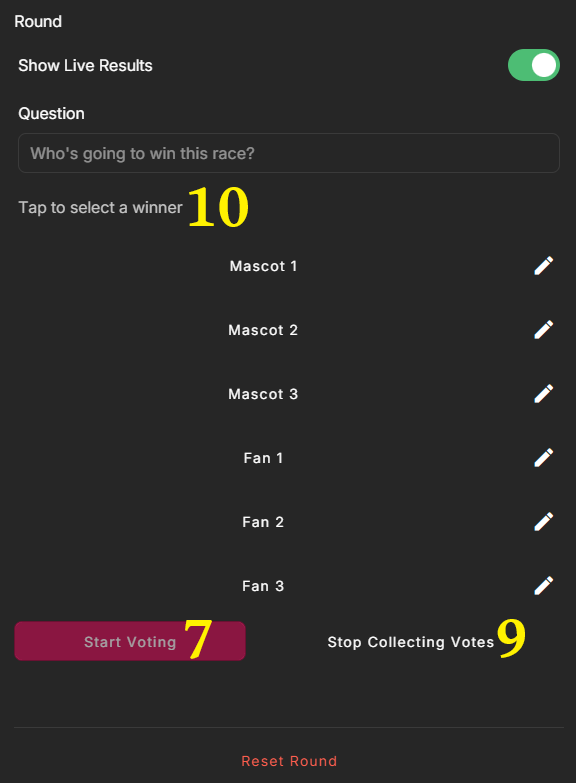
7. When you are ready to begin accepting votes, click Start Voting. Typically you would begin accepting Votes either BEFORE this Poll goes on the video board, or at the same moment it goes on the video board
8. Leave the Poll on the Video Board for several minutes before the race starts. This allows fans time to scan in and make their selection
9. Just before the race starts, click Stop Collecting Votes. This is important because you don't want people to see part of the race and THEN pick a winner
10. Once the race ends, the moderator finds the winner on the moderation screen and clicks them to designate them as the winner. You'll receive a confirmation window. Click Declare Winner to confirm and end the Poll
Once you confirm the winner in the final step, all participants will be redirected to the post participation flow. That flow consists of either a Winners End Page and Winners URL, or a standard End Page and standard URL. Your post participation flow can be customized in the Phone Design section (use the Left Nav).
Use "Reset Round" to cancel the Poll and return to setup mode.
This concludes the guide on Polling. Please use the Support Chat for any additional questions. Thank you!
Was this article helpful?
That’s Great!
Thank you for your feedback
Sorry! We couldn't be helpful
Thank you for your feedback
Feedback sent
We appreciate your effort and will try to fix the article